Video Tools
Video Crop Preview — Frame Every Aspect Ratio Perfectly
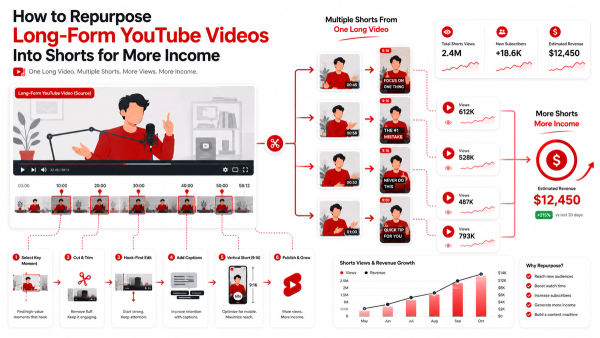
Preview how your horizontal footage crops to 9:16 Shorts, 1:1 posts or 4:5 feeds — and position the crop window with pixel precision.
Video Crop Preview
Preview how your video looks cropped to 16:9, 9:16 Shorts, or 1:1 square — before you commit.
Introduction
Repurposing a landscape video for Shorts or Instagram shouldn't be guesswork. The Thumbix Crop Preview overlays a draggable window in 9:16, 1:1, 4:5 and more, so you can see precisely what stays inside the frame before you ever open an editor. Nudge with arrow keys, read out exact pixels, then set the same values in your editing software.
How to use Video Crop Preview
Pick a format
Select Shorts, square, portrait or landscape.
Position the window
Drag or arrow-key the crop over your subject.
Read the numbers
Copy the pixel values into your editor's crop settings.
What Is This Tool?
A crop planner for creators. Load a video, switch aspect-ratio presets, and drag the crop window over the picture. A dark overlay shows exactly what will be cut away, and a live readout reports the window's position in source pixels.
Why Use It?
- Check Shorts framing before recording or re-editing.
- Presets for 9:16, 1:1, 4:5 and 16:9.
- Pixel-accurate X/Y readout for repeatable edits.
- Keyboard nudging for precise placement.
How Does It Work?
Choose a preset — the window resizes to match — then drag it anywhere over the paused video. The dimmed area is what gets cropped away. The readout converts your placement back into source-resolution pixels you can type into any editor.
Common Mistakes to Avoid
- Framing for the paused preview but ignoring camera drift later in the clip.
- Placing captions where platform UI covers them.
Frequently Asked Questions
No — it previews crop placement and gives you exact pixel coordinates to apply in your editor.
9:16, 1:1, 4:5, 16:9 and a custom option covering everything else.
Typing the same coordinates into Premiere, Resolve or FFmpeg reproduces the exact crop you previewed here.
Crop once. Publish everywhere.
Verify your framing across formats before you render — takes seconds.
Try the Crop Preview