Table of Contents
- What Is YouTube Thumbnail A/B Testing?
- Test & Compare vs. A/B Testing: Same Feature, New Name
- Who Can Access This Feature
- How to Start a Thumbnail A/B Test, Step by Step
- How YouTube Picks a Winner
- CTR vs. Watch Time: Why the Distinction Matters
- How Many Variations to Test, and What to Change
- What Not to Do Mid-Test
- How Long a Test Typically Takes
- After the Test: Applying What You Learned
- How A/B Testing Fits Into a Broader Thumbnail Workflow
- A Note on Feature Availability
- Common A/B Testing Mistakes
How YouTube Studio's built-in A/B testing (formerly Test & Compare) actually works, who can access it, and how to run a test that produces a useful result.
For years, the only way to compare thumbnails was to guess, swap the image manually, and eyeball the difference in the analytics dashboard days later — a process with no real statistical footing. YouTube's own built-in testing tool changed that, and it's now the standard way serious creators validate a thumbnail before committing to it. This guide explains how the feature actually works, who can access it, and how to run a test that gives you a trustworthy answer instead of noise.
What Is YouTube Thumbnail A/B Testing?
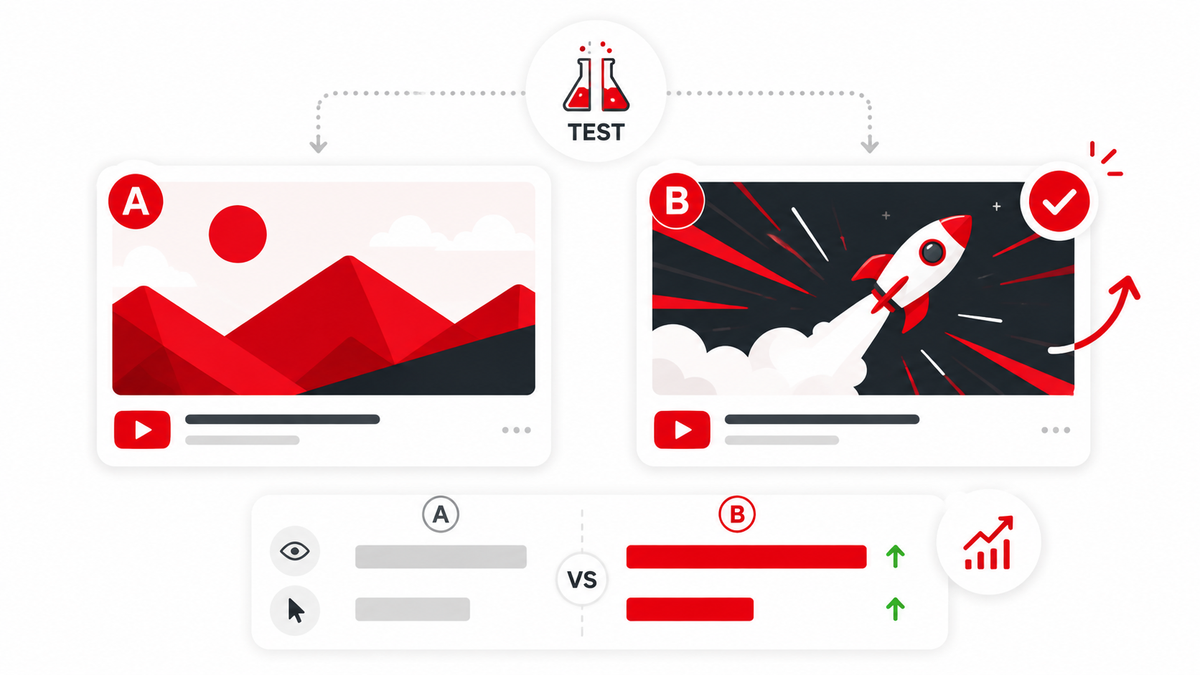
According to YouTube's own Help documentation, creators can test and compare up to three different titles and thumbnails for a single video. At the end of the test, the option with the highest watch time is shown to all remaining viewers automatically. It's a native, first-party experiment: your own viewers, your own video, measured with YouTube's own data, rather than a third-party tool guessing at outcomes.
Test & Compare vs. A/B Testing: Same Feature, New Name
If you've seen the feature referred to as "Test & Compare" in older guides and "A/B testing" in newer ones, that's not a different tool — it's the same feature under an updated label. YouTube's current Studio interface and Help Center both use the "A/B test titles & thumbnails" naming, but "Test & Compare" is still the term a lot of creators search for and use in conversation, since that's what the feature was originally called when it began rolling out.
Who Can Access This Feature
- Desktop only — the feature is currently available exclusively through YouTube Studio on a computer, not the mobile app.
- Advanced features required — your channel needs advanced features enabled, which typically involves phone and identity verification.
- Not available for Shorts, scheduled Premieres (until the Premiere ends and it converts to a regular upload), or scheduled live streams — though completed live stream archives are eligible.
- Not available on videos marked Made for Kids, videos for mature audiences, or private videos.
- Your channel needs to be in good standing with YouTube's Community Guidelines, since violations can remove access to the feature.
How to Start a Thumbnail A/B Test, Step by Step
- Sign in to YouTube Studio on a desktop browser.
- Go to Content and select the video you want to test.
- Open the video's details or editor view and find the Thumbnail section.
- Choose the A/B testing (or Test and compare) option, then select the mode: Title only, Thumbnail only, or Title and thumbnail.
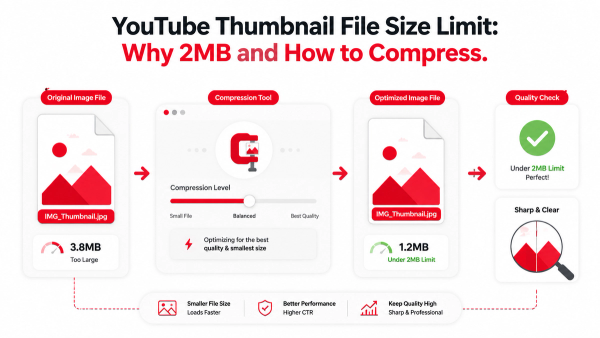
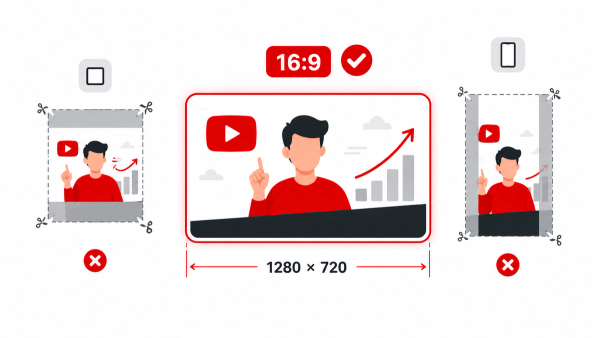
- Upload up to three thumbnail variants. Each one still needs to meet YouTube's normal thumbnail requirements — see our guides on thumbnail file size and the correct 16:9 aspect ratio before uploading variants, since a low-resolution option can cause YouTube to downscale every variant in the test to match it.
- Start the test and monitor its progress from the A/B testing tab in Studio.
One important detail from YouTube's own documentation: if you manually change a video's title or thumbnail while a test is running, the test stops automatically, and you'll need to restart it from scratch.
How YouTube Picks a Winner
YouTube evaluates each variant primarily by its share of watch time, not raw click volume. Once enough impressions have accumulated, the test resolves into one of three outcomes: a clear Winner, Performed Same when the variants are statistically indistinguishable from each other, or Inconclusive when there simply weren't enough impressions to reach a confident answer. If a test ends without a clear winner, YouTube keeps whichever thumbnail was uploaded first by default.
CTR vs. Watch Time: Why the Distinction Matters
A thumbnail can pull in a high click-through rate and still be a bad choice for the channel if it oversells the video and causes viewers to click away within seconds. By weighting results toward watch time rather than clicks alone, YouTube's testing tool discourages exactly that kind of bait-and-switch thumbnail, since a variant that gets clicks but doesn't hold attention won't win the test even if its raw CTR looks impressive in isolation.
How Many Variations to Test, and What to Change
You can upload up to three variants per test, but more options aren't automatically better if they're not meaningfully different from each other. The most useful tests change exactly one variable at a time — face versus no face, a bright background versus a dark one, more text versus less — so that whatever wins tells you something you can actually reuse on future thumbnails, rather than a jumble of three totally different concepts where you can't isolate what actually drove the result.
What Not to Do Mid-Test
- Don't manually edit the thumbnail or title outside the testing tool while a test is running, since that automatically stops it.
- Don't judge results from an early trickle of views; small early samples swing wildly and rarely reflect the eventual outcome.
- Don't run a test on a video with very little ongoing traffic, since it may never accumulate enough impressions to resolve as anything other than Inconclusive.
How Long a Test Typically Takes
There's no fixed countdown; tests resolve once YouTube has gathered enough impressions to be confident in a result, which commonly takes a few days and should generally wrap up within about two weeks. Higher-traffic videos tend to reach a confident result faster simply because they accumulate impressions more quickly.
After the Test: Applying What You Learned
A single test result isn't a permanent rule, since audience behavior and competing content shift over time, but it is a genuine data point. Log which variable you changed and which variant won, then apply that pattern to your next few uploads rather than treating every video as a brand-new guessing game. If you're looking for a broader framework to build stronger variants in the first place, our 12-rule thumbnail design guide covers the composition, contrast, and clarity principles worth testing against.
How A/B Testing Fits Into a Broader Thumbnail Workflow
Testing works best as one stage in a repeatable process rather than a one-off experiment you run occasionally. A useful loop looks like: design a thumbnail using solid composition fundamentals, upload it alongside one deliberate variation, let YouTube's A/B testing tool run its course, record what won and why you think it won, then carry that pattern into your next few thumbnails before testing the next variable. Over months, this turns into a genuinely data-informed style for your channel instead of a collection of one-off guesses.
A Note on Feature Availability
Not every creator sees an identical version of this feature. YouTube rolled A/B testing out gradually over time, starting as a small-scale thumbnail-only experiment and later expanding to include title testing as well, and eligibility still depends on factors like channel verification status and account standing. If you don't see an A/B testing or Test & Compare option on a given video, it's worth checking your channel's advanced features status in Studio settings before assuming something is broken.
Common A/B Testing Mistakes
- Testing three thumbnails that are all essentially the same idea with minor color tweaks, which rarely produces a meaningful winner.
- Ending a test early based on gut feeling instead of letting YouTube reach a statistically confident result.
- Uploading a low-resolution variant, which can force YouTube to downscale the sharper variants in the same test to match it.
- Treating a winning thumbnail as permanent instead of periodically re-testing as audience trends shift.
Frequently Asked Questions
Is Test & Compare the same feature as A/B testing?
Yes. Test & Compare was the original name for the feature; YouTube's current Studio interface and Help documentation call it A/B testing, but both terms refer to the same tool.
Can I A/B test a YouTube Shorts thumbnail?
No. According to YouTube's own documentation, Shorts are not currently eligible for A/B testing, along with scheduled Premieres and scheduled live streams.
Does running a test hurt my video's performance while it's active?
No. The test simply shows different variants to different segments of your audience and measures the results; it doesn't penalize the video's overall reach.
What happens if all my thumbnail variants perform about the same?
YouTube reports this as "Performed Same," which is a valid and useful result — it tells you the variable you tested didn't meaningfully affect viewer behavior for this video.
Do I need channel verification to access A/B testing?
Yes. The feature requires advanced features to be enabled on your channel, which involves phone and identity verification.
Can I start or check an A/B test from the mobile app?
The feature is currently limited to YouTube Studio on desktop, not the mobile app.
What happens if a test doesn't reach a clear winner?
If the result is Inconclusive or Performed Same, YouTube defaults to keeping whichever thumbnail was uploaded first in the test.
Can I test more than three thumbnails at once?
No. YouTube's A/B testing currently supports up to three variants per test.