Table of Contents
- What Is the YouTube Thumbnail File Size Limit?
- File Size vs. Dimensions vs. Resolution: Why They're Not the Same Thing
- Why Does YouTube Limit Thumbnail File Size at All?
- Why a Correctly Sized 1280×720 Thumbnail Can Still Be Over 2MB
- JPG vs PNG vs GIF vs BMP: Which Format Keeps File Size Down?
- How Compression Actually Works
- How to Compress a YouTube Thumbnail to Under 2MB (Step by Step)
- Exporting Under 2MB From Canva
- Exporting Under 2MB From Photoshop
- How to Check a Thumbnail's File Size Before You Upload
- On Windows
- On Mac
- On Android
- On iPhone
- What to Do When Compression Makes Your Thumbnail Blurry
- Common Mistakes That Push Thumbnails Over 2MB
- A Practical Compression Workflow You Can Reuse
- Do You Need to Worry About the New 50MB Limit?
YouTube caps thumbnails at 2MB on mobile. Here's why the limit exists, why correctly sized images still fail it, and how to compress one properly.
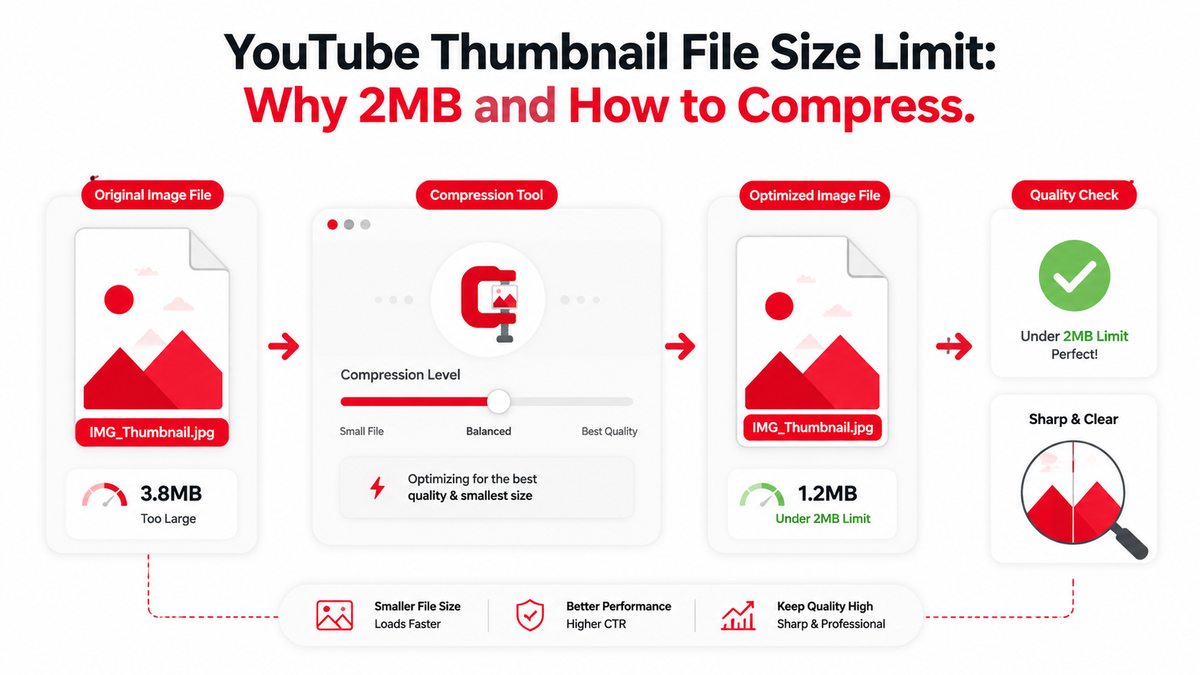
If YouTube just rejected your custom thumbnail with a vague upload error, you're not alone. It's one of the most common snags creators hit right after exporting a big, detail-heavy image from Canva or Photoshop. YouTube caps custom thumbnail uploads at 2MB for most creators uploading from a phone, and while a much larger, TV-focused limit has started rolling out on desktop, 2MB is still the number worth designing around if you want your upload to go through on the first try. The confusing part is that file size, image dimensions, and resolution sound similar but measure completely different things, which is exactly why a "correctly sized" 1280×720 thumbnail can still bounce. Here's what the YouTube thumbnail file size limit actually means, why it exists, and the exact steps to get under 2MB without turning your thumbnail into a blurry mess.
What Is the YouTube Thumbnail File Size Limit?
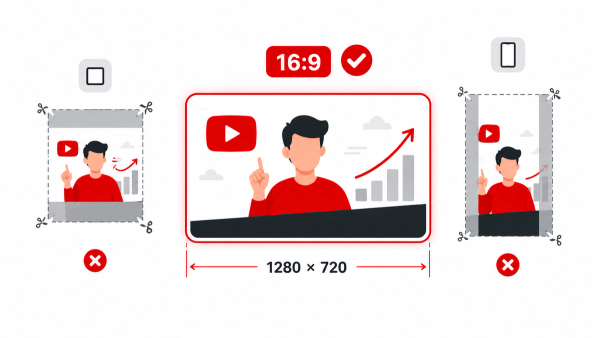
The short answer: custom thumbnails need to be under 2MB when uploaded from a mobile device, in JPG, PNG, GIF, or BMP format, at 1280×720 pixels (16:9 aspect ratio) with a minimum width of 640 pixels. YouTube announced in late 2025 that it would raise the ceiling to 50MB on desktop to support sharper thumbnails on connected TVs, and that expanded limit is now listed on YouTube's official Help documentation, but it's rolling out gradually rather than applying to every account and every surface at once. Until you've confirmed the higher limit is live for you, treat 2MB as the safe number.
File Size vs. Dimensions vs. Resolution: Why They're Not the Same Thing
These three terms get used interchangeably, but they describe different properties of an image. Dimensions are the pixel grid, such as 1280 pixels wide by 720 pixels tall. Resolution, in a web context, usually means the same thing as dimensions, since pixels-per-inch only matters for print. File size is the number of bytes the image takes up on disk, and it's determined by dimensions combined with how much compression has been applied and how visually complex the image is. Two images can share identical dimensions and look nearly identical on screen while one is 400KB and the other is 4MB, purely because of how they were compressed and exported.
Why Does YouTube Limit Thumbnail File Size at All?
Thumbnails are the single most-loaded image type on YouTube. Every home feed, search page, and suggested-videos rail renders dozens of them at once, often on a mobile data connection. Capping the file size keeps those pages loading quickly and keeps YouTube's infrastructure from serving unnecessarily large files for an image that's ultimately displayed at a few hundred pixels wide in most placements. It's a practical performance limit, not an arbitrary hurdle.
Why a Correctly Sized 1280×720 Thumbnail Can Still Be Over 2MB
Dimensions and file size are independent, which is the part that trips people up. A 1280×720 photo with lots of fine detail, gradients, film grain, or texture compresses far less efficiently than a simple flat-color graphic at the exact same dimensions, because compression algorithms work by finding repeated or predictable patterns in the pixel data. A busy background, a high-resolution face photo, or a screenshot straight off your phone can all land well above 2MB even though the pixel grid is exactly what YouTube asks for. This is also why exporting a PNG straight out of Canva at "print quality" settings so often fails: PNG's lossless compression preserves every pixel exactly, which is great for sharp text and logos but terrible for file size.
JPG vs PNG vs GIF vs BMP: Which Format Keeps File Size Down?
- JPG (JPEG) uses lossy compression and is almost always the smallest usable format for photo-based thumbnails. It's the safest default, and YouTube re-encodes every thumbnail it accepts anyway, so a well-exported JPG rarely loses visible quality after upload.
- PNG is lossless and handles sharp edges, flat colors, and small text better than JPG, which makes it a good choice for graphic-style thumbnails with bold typography — but PNG files are typically two to five times larger than an equivalent JPG, so they hit the 2MB ceiling much sooner.
- GIF is technically accepted but limited to 256 colors, which makes it a poor fit for anything photographic. There's rarely a reason to export a static thumbnail as GIF.
- BMP is essentially uncompressed. A 1280×720 BMP can easily be several megabytes, so it should be avoided for thumbnail exports entirely.
As a rule of thumb: export photo-heavy thumbnails as JPG, and reserve PNG for simple graphic layouts where you can confirm the file still lands under 2MB after export.
How Compression Actually Works
Lossy compression, used by JPG, reduces file size by discarding image data the human eye is less likely to notice, such as subtle color gradients or high-frequency detail in busy areas. It's adjustable, usually through a quality setting from 0-100, and higher settings keep more of the original detail at the cost of a bigger file. Lossless compression, used by PNG, shrinks file size by encoding repeated patterns more efficiently without discarding any pixel data, which is why it preserves crisp edges but doesn't compress as aggressively as JPG on complex photos.
How to Compress a YouTube Thumbnail to Under 2MB (Step by Step)
- Start from the largest clean export you have rather than a screenshot or a re-saved copy — every re-compression of an already-compressed JPG loses a little more quality.
- Export as JPG at roughly 85-90% quality. For a standard 1280×720 thumbnail, this typically lands between 150KB and 600KB, comfortably under the limit.
- If the file is still over 2MB, check the dimensions first. A thumbnail exported at 4K or 8K canvas size will be far heavier than one exported at 1280×720 or 1920×1080; don't go below 1280×720, but there's rarely a reason to go much above it either.
- Re-export and check the file size again before uploading.
- If you're stuck with a flat, text-heavy PNG that needs to stay lossless, run it through a dedicated compressor or a browser-based resizer, such as Thumbix's Thumbnail Resizer, which resizes and compresses an image to YouTube-ready specs without uploading it anywhere.
- Do a final check of the exported file's size on your device before uploading to YouTube Studio.
Exporting Under 2MB From Canva
In Canva's download menu, choose the JPG file type rather than PNG whenever the design allows it, and use the compression/quality slider that appears before you download. Avoid the "print quality" or PDF settings, which are built for physical printing and produce far larger files than a thumbnail needs.
Exporting Under 2MB From Photoshop
Use File > Export As, choose JPG, and drag the quality slider while watching the estimated file size shown in the dialog box. Converting the color profile to sRGB before export also helps keep the file smaller and ensures the colors display correctly on YouTube, since most web platforms expect sRGB rather than a wider print color space.
How to Check a Thumbnail's File Size Before You Upload
On Windows
Right-click the image file in File Explorer, choose Properties, and the file size is listed on the General tab.
On Mac
Select the file in Finder and press Command+I to open Get Info, where the size is listed near the top.
On Android
Open the Files app, long-press the image, and choose Details or Properties from the menu that appears to see the exact file size.
On iPhone
Open the Files app (not Photos), locate the image, tap the info icon, and the file size appears in the details panel. If the image only exists in your Photos library, save it to Files first to check its size.
What to Do When Compression Makes Your Thumbnail Blurry
Pushing the quality slider too far down is the most common mistake, but it isn't the only fix available. Before dropping quality further, try simplifying busy backgrounds and reducing film-grain or noise textures, since these are what force file size up in the first place. Avoid repeatedly re-saving the same JPG, since each export compounds quality loss even at a high quality setting. And resist the urge to shrink the canvas below 1280×720 to hit the file size target — that trades one problem (file size) for a worse one (a thumbnail that looks soft or pixelated once YouTube displays it at full size in the suggested-videos rail).
Common Mistakes That Push Thumbnails Over 2MB
- Exporting PNG by default from Canva instead of switching to JPG for photo-based designs.
- Designing and exporting at an unnecessarily large canvas size, like 4K or 8K, when 1280×720 or 1920×1080 is plenty for standard delivery.
- Uploading a raw, uncompressed phone screenshot as the thumbnail.
- Adding heavy grain, noise, or texture overlays that make an otherwise simple image compress poorly.
- Stacking multiple semi-transparent PNG layers and flattening them into a single lossless export instead of a compressed JPG.
A Practical Compression Workflow You Can Reuse
Once you've hit the 2MB limit a couple of times, it's worth settling on a repeatable export routine rather than troubleshooting from scratch every upload. Design at 1280×720 or 1920×1080 rather than an oversized canvas, export as JPG at a quality setting around 85-90%, and check the resulting file size before you ever open YouTube Studio. If your channel leans on flat graphic thumbnails with bold text rather than photos, keep a second PNG export on hand and compare the two file sizes side by side — sometimes a well-optimized PNG of a simple design comes in smaller than a JPG of the same graphic, because JPG's compression is tuned for photographic detail, not flat color blocks.
It also helps to keep your original, uncompressed source file (a Canva project, a Photoshop .psd, or a layered file) separate from your exported thumbnail. That way, if a future export needs to be recompressed or resized, you're always starting from the highest-quality version rather than compressing an already-compressed JPG a second or third time, which is one of the fastest ways to introduce visible artifacts.
Do You Need to Worry About the New 50MB Limit?
For most creators, not yet, and possibly not ever in a way that changes your workflow. YouTube's expanded desktop limit exists specifically to let the platform generate and serve sharper thumbnails on TV apps, where a thumbnail is displayed at a much larger physical size than it ever is on a phone or laptop. YouTube itself re-encodes and resizes every thumbnail for each surface it appears on regardless of your original file size, so uploading a 40MB file provides no visible benefit for a typical mobile or desktop viewer. Unless you're deliberately optimizing for the TV-viewing experience, designing at 1280×720 to 1920×1080 and keeping the export under 2MB remains the simplest, most reliable approach — and it works whether or not the higher limit has reached your account yet.
Getting the file size right is only one part of a compliant thumbnail. If you're also unsure whether your image's proportions are correct, our guide to YouTube's 16:9 aspect ratio requirement covers dimensions and cropping in detail.
Frequently Asked Questions
Does YouTube still limit thumbnails to 2MB in 2026?
Yes, for most mobile uploads. YouTube has started rolling out a 50MB limit on desktop uploads to support 4K thumbnails on TV apps, but that expanded limit isn't live for every account yet, so 2MB remains the safe target.
Why is my PNG thumbnail over 2MB when a similar JPG isn't?
PNG uses lossless compression, which preserves every pixel exactly and produces larger files than JPG's adjustable lossy compression, especially for photo-based images.
What happens if I try to upload a thumbnail over 2MB?
YouTube Studio will block the upload and show an error rather than compressing the file for you automatically. You need to reduce the file size yourself before it will accept the image.
Does compressing a thumbnail hurt its quality on YouTube?
A well-exported JPG at 85-90% quality is generally imperceptible from the original once YouTube re-encodes the thumbnail on its own servers, since YouTube compresses every accepted thumbnail again regardless of the format you uploaded.
Do I have to use exactly 1280×720?
1280×720 is the long-standing recommended size and a safe default, with a minimum accepted width of 640 pixels. Larger 16:9 sizes up to 4K are now accepted too, but they aren't required for normal display.
Can I upload a WebP thumbnail?
YouTube's official format list for thumbnails covers JPG, PNG, GIF, and BMP. WebP isn't listed among the accepted formats, so it's safest to export as JPG or PNG.
Does resizing an image to smaller dimensions always reduce its file size?
Not necessarily. Dimensions and compression quality are separate levers — shrinking the canvas without also adjusting the export quality can still leave you with a file that's larger than expected.