Table of Contents
- What Image Compression Actually Is
- Why Platforms Compress Images at All
- Does YouTube Process Uploaded Thumbnails?
- Resolution Versus Quality
- File Size Matters Too
- Common Compression Artifacts to Recognize
- JPEG Artifacts
- Softening and Blur
- Noise Amplification
- Format Choice: JPEG, PNG, and GIF
- Color Profiles and RGB
- Export Quality Settings
- The Hidden Cost of Repeated Editing and Exporting
- Screenshots, Upscaling, and Sharpening
- Thin Lines, Gradients, and Text Clarity
- How Display Context Affects Perceived Quality
- Design Choices That Are More Compression-Resistant
- A Practical Export Workflow
- Export Settings by Tool
- Canva
- Photoshop
- Figma
- Pre-Upload Quality Checklist
- Troubleshooting a Blurry Thumbnail
- A Note on Custom Thumbnail Eligibility
- Alpha Transparency and GIF Thumbnails
- Batch Exporting for Multiple Thumbnail Ideas
- When Compression Loss Is Not the Real Problem
- Frequently Asked Questions
Why sharp thumbnails can look softer after upload, and a practical export workflow to minimize visible compression loss.
You export a thumbnail at full resolution, the text is razor-sharp in your editor, and then it hits YouTube looking noticeably softer -- fine lines blur slightly, gradients show faint banding, and small text loses some of its crispness. Nothing is technically broken. This is largely how image delivery on the web works, and understanding it lets you design thumbnails that hold up better after upload rather than fighting a losing battle against it.
The good news is that most of the variables here are actually within a creator's control. YouTube's own processing pipeline isn't something you can adjust, but the resolution, format, export quality, and number of times a file has been re-compressed before it ever reaches YouTube are all decisions made well before upload -- and they're the biggest levers available for keeping a thumbnail looking sharp once it goes live.
What Image Compression Actually Is
Compression reduces an image's file size by discarding or approximating some of its data. Lossless compression (used by formats like PNG) shrinks file size without discarding image information -- it just encodes the same data more efficiently. Lossy compression (used by formats like JPEG) reduces file size by approximating parts of the image, especially in areas the human eye is less sensitive to, which is why heavy JPEG compression tends to show up first as blur or blocky artifacts around fine detail and sharp edges.
Why Platforms Compress Images at All
Serving billions of thumbnail impressions a day at full, uncompressed resolution would be enormously expensive in bandwidth and would slow down page loads for viewers on slower connections. Compression and resizing are standard practice across essentially every major platform that displays large volumes of user-uploaded images -- it's not unique to YouTube or a sign of a specific quality problem with your upload.
Does YouTube Process Uploaded Thumbnails?
Yes, in the general sense that YouTube -- like other large platforms -- generates and serves multiple versions of an uploaded thumbnail at different resolutions for different contexts (a small suggested-video tile is a different size than a large watch-page preview), and applies compression as part of that delivery pipeline. The specific internal algorithms, exact compression ratios, and per-context technical parameters YouTube uses aren't fully published, so it's important not to treat any specific claimed number as an official specification unless it comes directly from YouTube's own documentation. What's reliably true is the general shape of the process: your original file gets resized and re-encoded into delivery versions, and that step is where visible quality loss most often creeps in.
Resolution Versus Quality
These are related but distinct. Resolution is the pixel dimensions of your file. Quality is how much visual detail and precision survives compression and resizing. A high-resolution image compressed aggressively can still look worse than a moderately sized image compressed gently. YouTube's documented recommendation for thumbnail uploads is a resolution of 1280 by 720 pixels, with a minimum width of 640 pixels, which corresponds to a 16:9 aspect ratio -- matching the standard video player shape.
File Size Matters Too
YouTube's help documentation specifies a maximum thumbnail file size of 2MB. Uploading a file close to that ceiling, especially one that's already been through several rounds of lossy export, gives the delivery pipeline less room to work with cleanly during any further resizing or re-encoding it performs.
Common Compression Artifacts to Recognize
JPEG Artifacts
JPEG compression works in small blocks, so heavy compression tends to produce visible blockiness, especially around sharp edges and fine text -- along with subtle color banding in smooth gradients like skies or soft-lit backgrounds.
Softening and Blur
Resizing an image, especially scaling it down and then having a platform resize it again for different display contexts, can introduce a small amount of softening as pixels are resampled and averaged.
Noise Amplification
Images with visible sensor noise or grain (common in low-light footage or heavily upscaled screenshots) tend to compress less cleanly, since compression algorithms struggle to efficiently encode random, high-frequency noise patterns.
Format Choice: JPEG, PNG, and GIF
YouTube accepts JPG, GIF, PNG, and BMP for custom thumbnails. In practice, most creators use JPEG for photographic thumbnails because it produces much smaller file sizes at visually similar quality for photo-like images, which leaves more headroom under the 2MB limit. PNG can be a better choice for thumbnails with large flat-color areas, sharp geometric shapes, or crisp small text, since PNG's lossless compression avoids the blocky artifacts JPEG can introduce around hard edges -- at the cost of a larger file size for the same image.
Color Profiles and RGB
Design software sometimes exports images in color profiles (like CMYK, used for print) that aren't intended for screen display. Thumbnails should be exported in standard RGB, the color model used by digital displays -- exporting in the wrong profile can cause colors to render incorrectly or inconsistently once uploaded.
Export Quality Settings
Most design and editing tools let you choose a JPEG quality level on export, often on a 0-100 or low-to-maximum scale. Exporting at a very low quality setting to hit a smaller file size introduces compression artifacts before the image has even left your computer -- compression YouTube's own processing then compounds on top of. A quality setting in the high range (roughly 80-95 out of 100 in tools that use that scale) is generally a reasonable balance between file size and visible quality for a thumbnail-sized image.
The Hidden Cost of Repeated Editing and Exporting
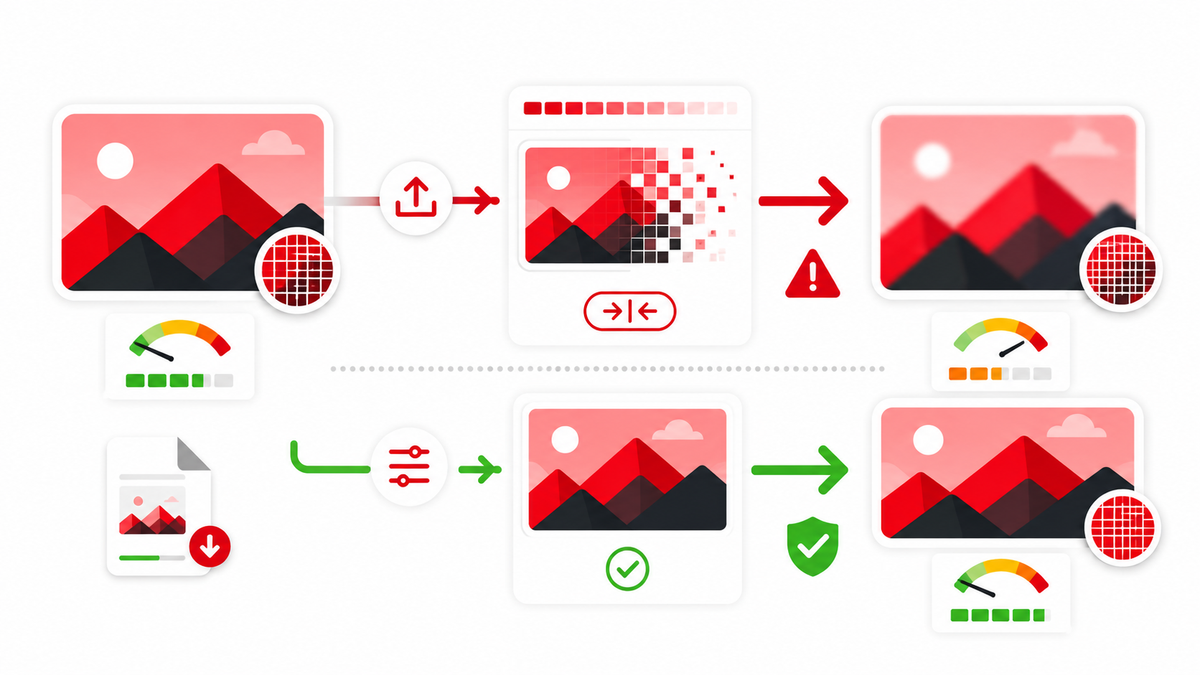
Every time a JPEG is opened, edited, and re-exported as a JPEG again, another round of lossy compression is applied on top of the previous one -- these losses accumulate. A thumbnail that's been round-tripped through several edit-export cycles in JPEG format often looks noticeably softer than one exported cleanly a single time from an original, uncompressed source file (like a native PSD, layered PNG, or the original video frame).
Screenshots, Upscaling, and Sharpening
Screenshots taken from a video frame are already a compressed, resized copy of the original footage, so they start with less detail to work with than the source recording. Upscaling a smaller image to hit YouTube's recommended dimensions doesn't add real detail back in -- it stretches existing pixels, which can look soft or artificial, particularly around edges and text. A light, deliberate sharpening pass after resizing can partially compensate, but heavy sharpening tends to introduce its own artifacts (halos around edges, exaggerated noise) rather than genuinely restoring lost detail.
Thin Lines, Gradients, and Text Clarity
Certain elements are more vulnerable to compression than others. Thin lines and fine strokes can break up or disappear entirely under compression. Smooth gradients are prone to visible banding. Small text is especially fragile -- thin fonts and small point sizes are exactly the kind of fine detail that lossy compression sacrifices first. Bold, moderately sized text with strong contrast against its background survives compression and resizing far better than delicate typography.
How Display Context Affects Perceived Quality
The same file can look different depending on where it's viewed. Mobile screens vary widely in pixel density; high-density ("Retina"-class) displays can make minor compression artifacts less noticeable, while some browser and app rendering paths apply their own scaling on top of whatever YouTube serves. Desktop browsers sometimes display a thumbnail at a size that doesn't map cleanly onto the delivered file's actual pixel dimensions, introducing an additional layer of resampling. This is part of why a single thumbnail can look slightly different across a phone, a tablet, and a desktop browser -- it's not necessarily inconsistent processing on YouTube's end so much as different devices and browsers rendering the same delivered file differently.
Design Choices That Are More Compression-Resistant
Some design decisions hold up better under compression and resizing than others, independent of export settings. Bold, moderately weighted fonts survive better than thin, delicate ones. Solid or simply gradiented backgrounds compress more predictably than busy, high-frequency textures. High-contrast color pairings stay legible even after some detail is lost, while subtle, low-contrast palettes can lose their distinction entirely. Designing with these constraints in mind from the start reduces how much a thumbnail depends on a perfect, artifact-free export to still look good.
A Practical Export Workflow
A dependable sequence for exporting thumbnails, from a source file to final upload:
- Design at or above YouTube's recommended 1280x720 resolution, working from an original, uncompressed source file rather than a previously compressed export.
- Export as JPEG at a high quality setting (roughly 80-95 out of 100) for photographic content, or PNG for thumbnails dominated by flat color, sharp shapes, or crisp text.
- Inspect the exported file at 100% zoom, checking text edges and fine details for visible artifacts before moving on.
- Compress further only if needed -- if the file is uncomfortably close to YouTube's 2MB limit, reduce the quality setting slightly rather than resizing the canvas down, which would sacrifice resolution instead.
- Upload the file directly from this export, avoiding any unnecessary intermediate re-saves.
- Check at actual display size on both a phone and a desktop browser once it's live, rather than judging quality only from the full-size preview in your editing software.
- Compare against your intended design and note any visible softening, so you can adjust the export settings on your next thumbnail if needed.
Export Settings by Tool
Canva
Canva's PNG export preserves sharp edges and text well but produces larger files; its JPEG export includes a quality slider worth setting high rather than accepting the default when file size allows.
Photoshop
Photoshop's "Export As" and "Save for Web" dialogs both let you preview file size against a visible quality setting in real time -- use that preview to find the smallest file size that doesn't introduce visible artifacts, rather than guessing at a percentage.
Figma
Figma's export panel allows PNG or JPEG export at defined pixel dimensions; setting the frame to YouTube's recommended 1280x720 before exporting avoids an extra resizing step outside the tool.
Pre-Upload Quality Checklist
- Is the source file's resolution at least 1280x720?
- Is the file under YouTube's 2MB size limit?
- Was the file exported directly from an original source, rather than re-compressed through multiple edit cycles?
- Is the color profile set to standard RGB, not CMYK or another print-oriented profile?
- Does small text remain legible at 100% zoom, with no visible blockiness around its edges?
- Are gradients reasonably smooth, without obvious banding?
- Has the thumbnail been previewed at actual mobile display size, not just full screen?
Troubleshooting a Blurry Thumbnail
If a thumbnail looks blurrier than expected after upload, work through these possibilities roughly in order:
- Check whether the original source file was already below 1280x720 and got upscaled at some point in the process.
- Check whether the file passed through multiple lossy JPEG export cycles before the final upload.
- Check the export quality setting used -- a low setting chosen to hit a small file size is a common, easily fixed culprit.
- Check whether fine text or thin lines are the specific problem area, which points toward a font-weight or line-thickness fix rather than a compression fix.
- Re-export cleanly from the original source file at YouTube's recommended resolution and a high quality setting, and compare the result side by side with the original upload.
A Note on Custom Thumbnail Eligibility
Uploading a custom thumbnail at all requires a verified YouTube account, since the feature sits behind YouTube's account verification step. This is unrelated to compression itself, but it's a common early stumbling block worth ruling out if a custom thumbnail won't upload -- the issue may be account eligibility rather than the image file.
Alpha Transparency and GIF Thumbnails
YouTube does accept animated GIF thumbnails on eligible channels, and PNG files can carry transparency. For a standard static thumbnail, transparency isn't relevant since it will always be displayed against YouTube's own interface background, not a custom one -- so there's rarely a reason to preserve an alpha channel in a final export. Keeping a flattened, standard RGB file without an unnecessary alpha channel also tends to reduce file size for no visual cost.
Batch Exporting for Multiple Thumbnail Ideas
When testing several thumbnail concepts for the same video, export each final candidate individually from the original source rather than duplicating and re-exporting an already-compressed file. It's a small habit, but it prevents the accumulated-compression problem described above from quietly creeping into your test variants, which would make an unfair comparison between them.
When Compression Loss Is Not the Real Problem
Not every soft-looking thumbnail is actually a compression issue. Sometimes the underlying source footage was already slightly out of focus, shot in low light with visible sensor noise, or captured at a lower resolution than the thumbnail needs. Compression will always make an already-soft image look worse, but re-exporting more carefully won't fully fix a source image that was never sharp to begin with. If a troubleshooting pass keeps coming back to the same result, it's worth checking the original source file's quality before assuming the export pipeline is at fault.
Frequently Asked Questions
Why does my YouTube thumbnail look blurry after uploading?
Most often it's a combination of starting resolution, export quality settings, and the platform's own resizing and compression for different display contexts. Exporting cleanly from an original source file at YouTube's recommended 1280x720 resolution and a high JPEG quality setting typically produces the sharpest result.
What is the best resolution for a YouTube thumbnail?
YouTube recommends 1280x720 pixels, with a minimum width of 640 pixels, in a 16:9 aspect ratio.
What is the maximum file size for a YouTube thumbnail?
YouTube's documented limit is 2MB per thumbnail image.
Should I use JPEG or PNG for a YouTube thumbnail?
JPEG generally works well for photographic thumbnails since it produces smaller files at similar visual quality. PNG can be a better choice for thumbnails with large flat-color areas, sharp shapes, or fine text, where JPEG's compression artifacts are more noticeable.
Does re-exporting a thumbnail multiple times reduce quality?
Yes, if it's saved and re-exported as JPEG repeatedly. Each lossy export applies additional compression on top of the previous one, and those losses accumulate. Exporting once from an original, uncompressed source file avoids this.
Does YouTube use a specific published compression algorithm for thumbnails?
YouTube doesn't publish the exact internal compression parameters it applies during delivery. What's well documented is the recommended upload specification (1280x720, up to 2MB); the platform-side processing beyond that isn't something creators can control directly, only work around with a clean, well-exported source file.
Why does my thumbnail look different on mobile versus desktop?
Different devices and browsers have different pixel densities and may apply their own additional scaling on top of the file YouTube delivers, which can make the same image look slightly different across screens.
Can I request that YouTube not compress my thumbnail?
No. There is no creator-facing setting to opt out of a platform's standard image delivery pipeline. The most effective lever creators have is controlling the quality of the source file and export settings before upload.
Does upscaling a small image improve thumbnail quality?
No. Upscaling stretches existing pixels rather than adding real detail, and can make an image look softer or more artificial, especially around text and edges. Starting from a source at or above YouTube's recommended 1280x720 resolution avoids the problem entirely.