Table of Contents
- What Is a YouTube Profile Picture
- Why Someone Might Want to Download a Channel Avatar
- Method 1: Using a Dedicated Profile Picture Downloader
- Method 2: Browser-Based Manual Methods
- Desktop Step-by-Step Instructions
- Mobile Step-by-Step Instructions
- Getting the Highest Available Quality
- Understanding Image Resolution and File Formats
- Channel Avatar vs. Video Thumbnail: What's the Difference
- Troubleshooting When an Image Won't Load
- Privacy and Responsible Use
- Copyright Considerations
- Common Mistakes to Avoid
- Frequently Asked Questions
- Conclusion
Need a public YouTube channel's profile picture in full quality? Here's how to download one on desktop or mobile, plus what you can and can't do with it afterward.
What Is a YouTube Profile Picture
A YouTube profile picture, sometimes called a channel avatar or channel icon, is the small circular image associated with a channel. It appears next to the channel name across the platform — on the channel page, in comments, in search results, in subscription feeds, and inside the YouTube app. Every public channel has one, and because it's a public-facing image, it's technically viewable (and in most cases savable) by anyone browsing that channel.
Why Someone Might Want to Download a Channel Avatar
There are several legitimate, everyday reasons someone might want a copy of a channel's profile picture:
- Reference and organization — keeping a local record of channels for research, moderation, or content planning.
- Design inspiration — studying how other creators or brands approach avatar design.
- Personal archiving — saving a copy before a channel potentially changes its branding.
- Collaboration prep — quickly pulling a partner channel's avatar for a shared graphic or intro slide.
- Fan or community projects — creating fan art, community banners, or unofficial wikis that reference public channel branding (subject to appropriate permissions and platform rules).
None of these use cases require special access — the image is already public. What matters is how the downloaded image is used afterward, which is covered later in this guide.
Method 1: Using a Dedicated Profile Picture Downloader
The simplest and most reliable way to download a YouTube profile picture is through a dedicated tool built for exactly this purpose, such as the Thumbix YouTube Channel Logo Downloader. Tools like this are convenient because they:
- Retrieve the image directly rather than relying on a manual workaround.
- Typically surface the highest publicly available resolution.
- Work the same way across desktop and mobile browsers.
- Save time compared to manually digging through page source code.
To use a tool like this, you generally just need the channel's URL or handle. Paste it in, let the tool load the channel's public avatar, preview it, and download the file. This method tends to be the most consistent option, especially for anyone who does this regularly rather than as a one-off task.
Method 2: Browser-Based Manual Methods
It's also possible to save a channel avatar manually through a browser, though this method is more fiddly and doesn't always return the highest-resolution version available. General approach:
- Visit the channel's public YouTube page.
- Right-click (or long-press on mobile) directly on the circular avatar image.
- Choose an option like "Open image in new tab" or "Save image as," depending on your browser.
- If available, check the opened image's URL — sometimes adjusting size parameters in the URL yields a larger version, though this isn't guaranteed to work consistently across all browsers or over time.
This manual approach works, but browsers render the avatar at a fixed display size, and right-clicking sometimes only grabs that smaller rendered version rather than the original uploaded file. A dedicated downloader tool typically does a better job of retrieving the source image directly.
Desktop Step-by-Step Instructions
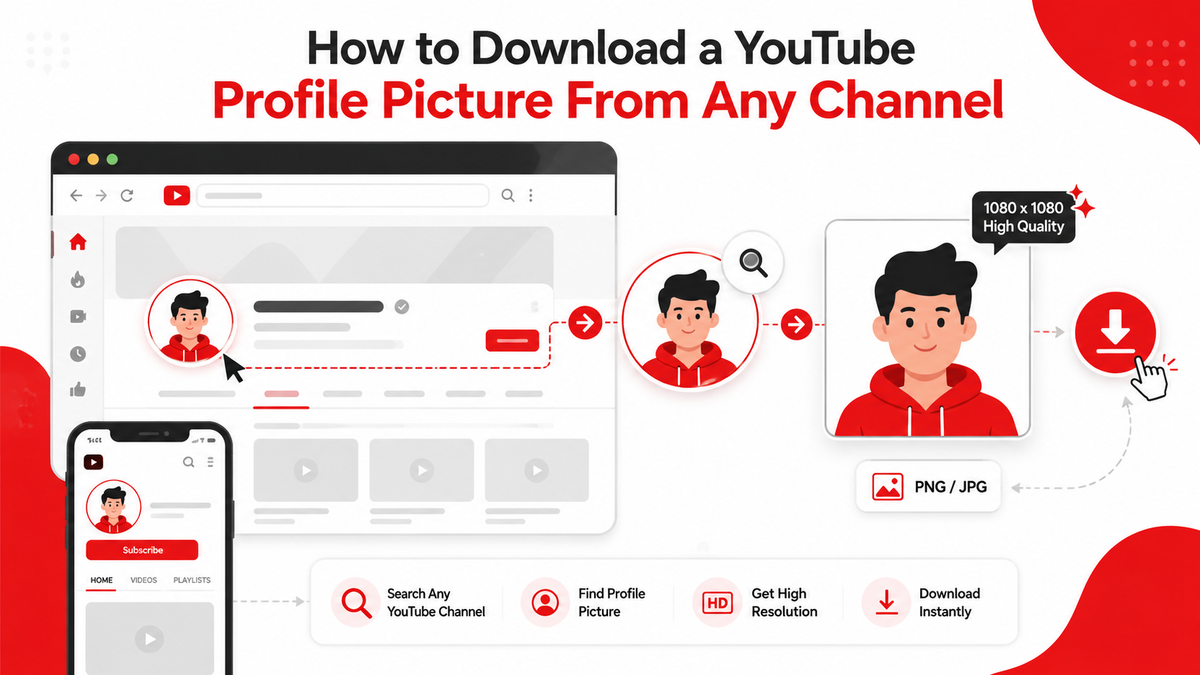
- Open your browser and navigate to the channel's YouTube page, or open the Thumbix profile picture downloader tool.
- If using a downloader tool, paste the channel URL or handle into the input field and submit it.
- Wait for the tool to load a preview of the channel's avatar.
- Compare the preview against the live channel page to confirm it's the correct, current image.
- Click the download option to save the file to your computer.
- Rename and organize the file as needed for your project.
If working manually instead, right-click the avatar image directly on the channel page and choose your browser's "save image" option, then check the resulting file's dimensions before using it.
Mobile Step-by-Step Instructions
- Open the YouTube app or your mobile browser and go to the channel's page.
- If using a downloader tool, open it in your mobile browser and paste in the channel URL or handle.
- Preview the loaded avatar image to confirm it matches the channel you intended.
- Tap the download button; depending on your device and browser, you may be prompted to confirm the save location.
- Check your device's Photos or Downloads folder to confirm the file saved successfully.
On mobile, manually long-pressing an avatar inside the official YouTube app often doesn't offer a direct "save image" option the way a browser does, which is one reason a dedicated downloader tool tends to be more reliable on phones and tablets.
Getting the Highest Available Quality
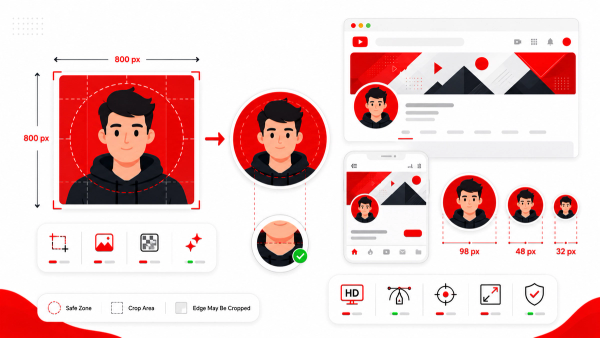
Channel avatars are uploaded at up to 800 x 800 pixels, but the version displayed on a channel page or in comments is often rendered much smaller by the browser or app. A basic screenshot or a simple right-click save frequently captures this smaller, lower-quality rendered version rather than the full source image. A dedicated downloader tool generally requests the underlying image data directly rather than a scaled-down on-page rendering, which is why it tends to produce a sharper, higher-resolution result — closer to whatever the channel owner originally uploaded, up to YouTube's own size limits.
Understanding Image Resolution and File Formats
Most YouTube channel avatars are saved and served as JPG or PNG files. Resolution can vary channel to channel depending on what the owner originally uploaded — some channels use the full 800 x 800 pixel size, while others may have uploaded something smaller. There's no way to make an avatar sharper than the resolution the channel originally provided; a downloader can only retrieve what YouTube is actually serving, not enhance it beyond that.
Channel Avatar vs. Video Thumbnail: What's the Difference
These two are often confused but serve different purposes:
- A channel avatar/profile picture represents the entire channel and appears consistently across every video, comment, and page associated with that channel.
- A video thumbnail is unique to a single video and represents just that one piece of content.
If you're trying to save an image from a specific video rather than the channel's overall branding, you're looking for a thumbnail downloader instead of a profile picture downloader — the Thumbix Thumbnail Downloader is built specifically for that use case.
Troubleshooting When an Image Won't Load
- Double-check the channel URL or handle for typos; an incorrect handle won't return any image.
- Confirm the channel is public. Private or restricted channels won't return an avatar through public-facing tools.
- Try refreshing or re-submitting the request, since occasional temporary loading issues can occur.
- Clear your browser cache if a stale or broken preview keeps appearing.
- Try a different browser or device to rule out a local browser issue.
Privacy and Responsible Use
Downloading a public profile picture for personal reference, research, or organizational purposes is generally straightforward, since the image is already publicly visible to anyone visiting the channel. That said, be thoughtful about how you use downloaded images involving real people — avoid using someone's likeness in a misleading, defamatory, or impersonating way, and be especially cautious with any use that could be interpreted as harassment or identity misrepresentation.
Copyright Considerations
Downloading an image does not transfer any ownership or usage rights. The channel owner (or whoever created the image) retains whatever rights they originally held. Saving a copy for personal reference, research, or non-commercial organizational use is generally low-risk, but reusing someone else's avatar publicly, commercially, or in a way that implies endorsement or affiliation typically requires explicit permission from the rights holder. When in doubt, treat any downloaded image as "look but don't republish without permission."
When a Channel Doesn't Have a Custom Profile Picture
Occasionally a downloader tool may return YouTube's generic default avatar rather than a custom image. This typically means the channel owner never uploaded a custom profile picture, and the platform is displaying its own placeholder instead. This isn't a fault of the downloader tool — it's accurately reflecting what the channel currently has set, and there's simply no custom image to retrieve in that case.
Common Mistakes to Avoid
- Assuming a screenshot is equivalent to the original file quality — it usually isn't.
- Forgetting to double-check that the downloaded image matches the current, up-to-date avatar rather than a cached older version.
- Reusing someone else's avatar commercially without checking whether that's permitted.
- Confusing a channel avatar with a video thumbnail and downloading the wrong asset.
- Not verifying the channel handle carefully, especially for channels with similar names.
Using a Downloaded Profile Picture for Research, Reference, or Organization
Beyond the basic download steps, it's worth thinking through how you'll actually use the image once it's saved. For research or organizational purposes — such as keeping a folder of avatars for competitor analysis, content planning, or a media outlet's reference library — a simple, clearly labeled file naming system helps avoid confusion later. Include the channel name and the date downloaded in the filename, since avatars can change over time and you may want to track when a particular version was captured. If you're using downloaded avatars as part of a larger project, such as a comparison article, an educational resource, or an internal team document, keep a simple record of which channel each image came from and when it was retrieved. This isn't just good practice for staying organized — it also makes it easier to respond appropriately if a channel owner later asks about how their image is being used, since you'll have a clear account of the context.
Comparing Downloader Tools to Manual Methods at a Glance
For anyone weighing which approach to use, the practical differences come down to consistency and quality rather than raw capability — both methods can technically retrieve an image. A dedicated downloader tool tends to win out for anyone who does this more than occasionally, since it removes the guesswork around whether you're capturing the full-resolution source file or just a smaller rendered version. Manual right-click saving remains a reasonable choice for a single, quick, low-stakes need where resolution isn't critical, such as grabbing a rough placeholder image for an early draft of a project.
Conclusion
Downloading a YouTube channel's profile picture is straightforward once you know where to look — a dedicated tool like the Thumbix Channel Logo Downloader retrieves the highest publicly available quality with minimal effort, while manual browser methods work in a pinch but often return a lower-resolution result. Just remember that downloading an image is only the first step; using it responsibly, and respecting the original owner's rights, is what matters afterward.
Frequently Asked Questions
Is it legal to download a public YouTube profile picture?
Viewing and saving a publicly visible image for personal, non-commercial reference is generally fine since the image is already public. Reusing it commercially or publicly usually requires the owner's permission.
Does downloading an avatar give me the right to use it?
No. Downloading only saves a copy of the file; it does not transfer ownership or usage rights, which remain with the original creator or channel owner.
Why does my downloaded image look blurry?
This usually happens with screenshot or right-click methods, which often capture a smaller, browser-rendered version. A dedicated downloader tool typically retrieves a sharper version.
Can I download a private channel's profile picture?
No. Public-facing downloader tools can only access publicly visible channel information, not private or restricted accounts.
What's the difference between a channel avatar and a video thumbnail?
An avatar represents the entire channel and appears everywhere the channel is referenced. A thumbnail is unique to a single video.
Why won't the tool load an image for the channel I entered?
Double-check the channel URL or handle for typos, confirm the channel is public, and try again, since occasional temporary loading issues can occur.
Can I use a downloaded avatar for my own video or thumbnail?
Only with the channel owner's permission, particularly for public or commercial use, since reusing someone else's branding without consent can raise copyright or trademark issues.