Table of Contents
- What Is YouTube Channel Art
- Where Channel Banners Are Displayed
- Why Someone Might Want to Save a Banner
- Method 1: Using a Channel Banner Downloader
- Method 2: Browser-Based Methods
- Desktop Workflow
- Mobile Workflow
- Finding the Highest Available Resolution
- Why Screenshots Are Usually a Poor Substitute
- Understanding Public Image URLs
- Troubleshooting Common Issues
- Responsible Use and Copyright Considerations
- Common Mistakes to Avoid
- Frequently Asked Questions
- Conclusion
Want to save a public YouTube channel's banner in full resolution? Here's how to download channel art on desktop and mobile without resorting to a blurry screenshot.
What Is YouTube Channel Art
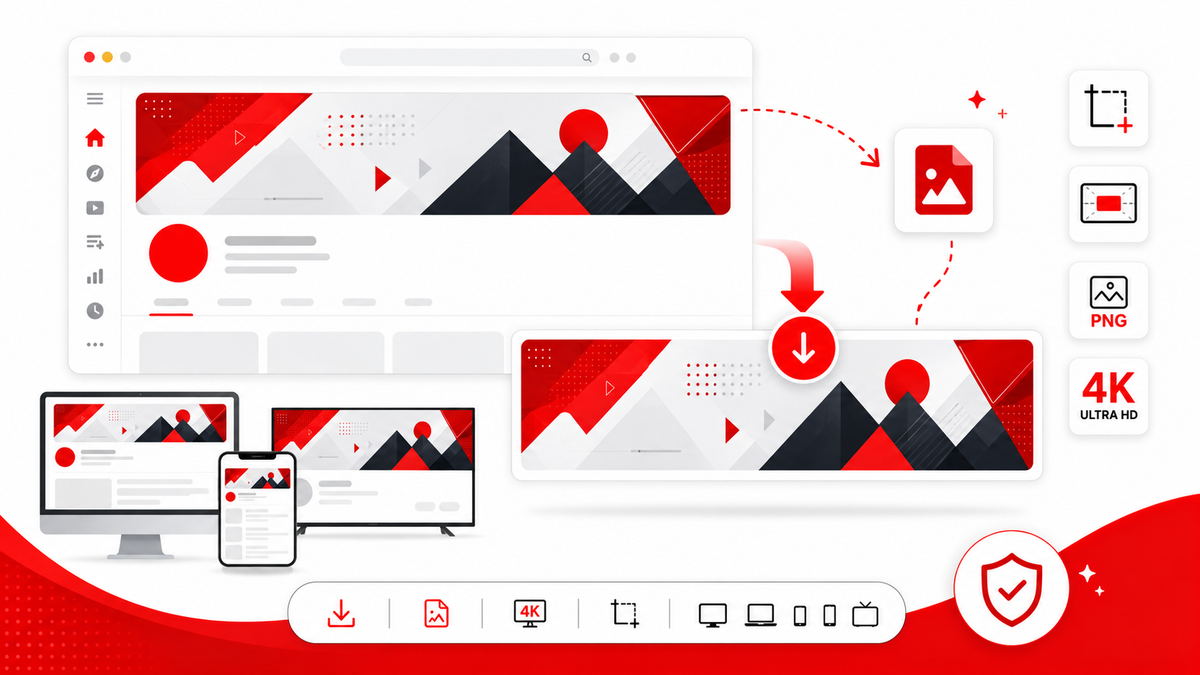
Channel art, more commonly called a YouTube banner, is the wide horizontal image displayed at the top of a channel's page. It's uploaded at up to 2560 x 1440 pixels and is one of the primary visual branding elements a channel has, alongside its profile picture and thumbnails. Because a channel's banner is publicly visible to anyone who visits the page, it's technically viewable — and in most cases savable — without needing any special account access. Unlike a video thumbnail, which changes with every upload, channel art tends to stay relatively stable over longer periods, since it represents the channel's overall identity rather than any single piece of content. This makes it a useful reference point when studying how a channel has branded itself over time, and it's part of why creators and researchers alike sometimes want a saved copy for comparison or archival purposes.
Where Channel Banners Are Displayed
A channel banner appears at the top of the channel's main page across devices, though the exact portion shown differs depending on the screen. Desktop browsers typically show a wider slice of the banner, while mobile devices show a narrower, more centered crop. On some surfaces, such as certain embedded or app contexts, the banner may not appear at all, appearing only when a viewer visits the channel page directly.
Why Someone Might Want to Save a Banner
There are several common, everyday reasons to download a channel's banner:
- Design research — studying how other channels structure their branding and layout.
- Reference for a redesign — keeping a record of a channel's current look before updating it.
- Collaboration materials — pulling a partner channel's banner for a joint promotional graphic.
- Archiving — saving a copy of a channel's branding at a specific point in time.
- Educational or analytical projects — comparing visual branding trends across multiple channels.
As with any public image, downloading is the easy part — using it appropriately afterward is what actually matters, which is covered later in this guide.
Method 1: Using a Channel Banner Downloader
The most straightforward way to get a channel's banner in full resolution is through a dedicated tool such as the Thumbix YouTube Channel Banner Downloader. Tools built specifically for this task typically:
- Pull the banner directly from YouTube's public image data rather than a scaled-down page rendering.
- Present a clean preview before downloading, so you can confirm it's the correct, current banner.
- Work consistently across desktop and mobile browsers.
- Save time compared to digging through a page's underlying code manually.
Generally, you just need the channel's URL or handle. Enter it into the tool, wait for the banner preview to load, confirm it's correct, and download the file.
Method 2: Browser-Based Methods
It's also possible to manually save a banner directly from a channel page, though this method is more error-prone and doesn't always retrieve the full-resolution original. General approach:
- Visit the channel's public YouTube page.
- Right-click (or long-press on mobile) on the banner image.
- Select "Open image in new tab" or "Save image as," depending on your browser.
- Check the resulting image's dimensions — if it appears smaller than expected, the browser may have only captured the rendered, on-page version rather than the original source file.
This manual method is fine for quick, low-stakes needs, but a dedicated downloader tool is generally more reliable if resolution matters for your project.
Desktop Workflow
- Go to the Thumbix Channel Banner Downloader, or navigate directly to the channel's page.
- Paste the channel URL or handle into the tool and submit it.
- Wait for the banner preview to load.
- Compare the preview to the live channel page to confirm accuracy.
- Click download to save the file locally.
- Open the saved file to verify resolution and quality before using it.
Mobile Workflow
- Open your mobile browser and go to the downloader tool, or the channel's page directly.
- Paste in the channel URL or handle if using a downloader tool.
- Review the loaded preview to confirm it's the channel you intended.
- Tap the download option and confirm the save location if prompted.
- Check your device's Downloads or Photos folder to confirm the file saved.
Mobile browsers vary in how well they support long-press image saving directly from a live channel page, which is another reason a dedicated downloader tends to work more consistently on phones.
Finding the Highest Available Resolution
Because YouTube channel banners can be uploaded at up to 2560 x 1440 pixels but are typically displayed at a much smaller, cropped size on any given device, a direct screenshot usually falls well short of the original quality. A dedicated downloader tool generally requests the actual stored image data rather than whatever cropped, compressed version happens to be rendering in your browser window at that moment, which is why it tends to produce a noticeably sharper result. Keep in mind that the maximum quality available is still limited by what the channel owner originally uploaded — a downloader can retrieve the full public image, but it can't add detail beyond what YouTube is actually serving.
Why Screenshots Are Usually a Poor Substitute
Screenshots capture only what's currently rendered on your screen, at your screen's resolution and at whatever crop your particular device happens to be showing. This means a screenshot is typically:
- Lower resolution than the original uploaded file.
- Only a partial crop of the full banner, missing the parts of the image outside the visible viewport.
- Subject to additional compression from your screenshot tool or messaging app if shared afterward.
A proper download, by contrast, retrieves the actual image file YouTube has stored, giving a cleaner and more complete result.
Understanding Public Image URLs
YouTube serves channel banners, like most images on the platform, from a content delivery network with a dedicated image URL. Because this URL points to a publicly accessible file, anyone with the correct link can view or save the image directly, without needing to log in or have any special permissions. This is the underlying mechanism a downloader tool relies on — it identifies the correct public image URL for a given channel and retrieves it directly, rather than working around any private or restricted system.
Troubleshooting Common Issues
Banner not loading in the tool: Double-check the channel URL or handle for typos, and confirm the channel actually has a banner set (some smaller or newer channels may not have uploaded one). Image appears low resolution: Confirm you're using a dedicated downloader rather than a manual screenshot, and check whether the channel itself uploaded a lower-resolution banner originally, since a downloader can't exceed what's actually stored. Wrong channel appears: Verify you've entered the exact correct handle, particularly for channels with similar or commonly confused names. Download doesn't start: Try a different browser, check that pop-up or download blockers aren't interfering, and confirm you have a stable internet connection.
Responsible Use and Copyright Considerations
Downloading a public banner for reference, research, or archival purposes is generally straightforward, since the image is already publicly visible to anyone who visits the channel. However, downloading an image does not transfer any ownership or usage rights — the channel owner retains whatever rights they hold over their branding and artwork. Using a downloaded banner for personal, non-commercial reference is generally low-risk. Reusing it publicly, commercially, or in a way that could suggest affiliation with or endorsement by the original channel typically requires explicit permission from the channel owner. This is especially relevant if the banner includes distinctive artwork, logos, or trademarked branding elements.
When a Channel Doesn't Have a Banner Set
Not every channel has uploaded custom channel art — some smaller or newer channels leave this field blank, in which case there's simply nothing to download. If a downloader tool returns no result for a channel, it's worth first checking the channel page directly to confirm whether a banner is actually present before assuming there's a technical issue with the tool itself.
Comparing Downloader Tools to Manual Saving
The core trade-off mirrors what applies to most public image downloads: a dedicated tool consistently retrieves the full-resolution source file with minimal effort, while manual saving is quicker to attempt but more likely to return a smaller, browser-rendered version. For a single casual look at a banner, manual saving is fine. For any project where resolution or consistency actually matters, a dedicated downloader is the more dependable choice.
Common Mistakes to Avoid
- Relying on a screenshot instead of a proper download when resolution matters.
- Assuming downloading grants any right to republish or reuse the banner commercially.
- Entering an incorrect channel handle and downloading the wrong channel's art.
- Not verifying the preview matches the current, up-to-date banner before downloading.
- Ignoring file size or format requirements if reusing the image in another project with its own constraints.
Using Downloaded Banners for Design Inspiration
A common and reasonable use of a downloaded banner is as a reference point when planning your own channel art. Rather than copying specific artwork or graphics, look at structural choices: how the creator balanced text and imagery, how they used the central safe zone, and how their color palette ties into their broader branding. Building a small folder of banners from channels you find well-designed, across a range of niches, can be a genuinely useful design resource, as long as the final output you create is your own original work rather than a close copy of someone else's specific design.
Keeping Track of What You've Downloaded
If you regularly download channel art for research, competitive analysis, or design reference, a simple organizational habit goes a long way. Save files with a clear naming convention that includes the channel name and download date, since banners change over time and you may later want to know exactly which version you captured and when. This also makes it easier to revisit a project weeks later without having to re-identify which image came from which channel.
Conclusion
Downloading YouTube channel art doesn't need to mean settling for a blurry screenshot. A dedicated tool like the Thumbix Channel Banner Downloader retrieves the full public-resolution banner in a couple of steps, on both desktop and mobile, while manual browser methods remain a reasonable fallback for quick, low-stakes needs. As with any public image, remember that downloading is just the first step — respecting the original owner's rights is what determines how you can use it afterward.
Frequently Asked Questions
Can I download any public YouTube channel's banner?
Yes, as long as the channel is public and has uploaded a banner. Private or restricted channels won't return an image through public-facing tools.
Does downloading a banner give me permission to reuse it?
No. Downloading only saves a copy of the file. Any reuse, especially public or commercial use, generally requires permission from the channel owner.
Why is my downloaded banner smaller than expected?
This usually happens with screenshot-based methods, which only capture the currently rendered, cropped portion. A dedicated downloader tool typically retrieves the full stored image.
What's the difference between channel art and a channel avatar?
Channel art (the banner) is the wide image across the top of a channel page. The avatar is the small circular profile picture next to the channel name.
Is there a way to get a higher-resolution banner than what's available?
No. A downloader can only retrieve what the channel owner uploaded and what YouTube is currently serving; it cannot add detail beyond that.
Why does the tool show an old version of the banner?
This can happen if the channel recently updated its banner and the change hasn't fully propagated yet. Try again after a short wait.
Can I use a downloaded banner as inspiration for my own design?
Using it as a reference point for your own original artwork is generally reasonable. Directly copying or republishing their specific artwork is not.