Thumbnails
Thumbnail Aspect Ratio Checker — Verify 16:9 Before You Upload
Check any image's aspect ratio against YouTube's 16:9 thumbnail spec, see how it will crop or letterbox, and fix the dimensions instantly. Free and in-browser.
Thumbnail Aspect Ratio Checker
Check any image's aspect ratio against YouTube's 16:9 standard and get the closest recommended size.
Upload an image to read its size automatically, or type width and height in pixels.
Aspect ratio
16:9 (16:9 — YouTube thumbnail (recommended))
1280×720px · 1.7778:1
Introduction
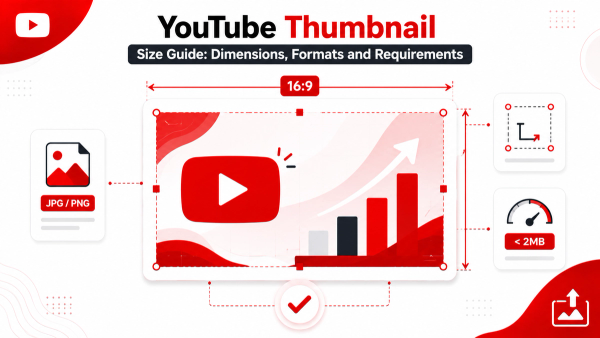
YouTube thumbnails are a 16:9 medium, full stop. That is the aspect ratio of every desktop feed tile, every mobile card, and every search result, and YouTube recommends uploading at exactly 1280×720 to match it. But images rarely arrive in that shape. Screenshots come out square or oddly proportioned, design tools export whatever canvas you chose, and a phone photo is a different ratio again. When an off-ratio image gets uploaded, YouTube has to reconcile the difference — and it does that with crops you did not plan or letterbox bars you did not want. The Thumbix Thumbnail Aspect Ratio Checker ends the guesswork: upload any image, and the tool reports its exact ratio, compares it to YouTube's 16:9 spec, and shows you precisely how your upload will look in the feed.
How to use Thumbnail Aspect Ratio Checker
Open the tool
Go to thumbix.site and open Thumbnail Aspect Ratio Checker.
Add your image
Upload a file or paste an image URL.
Read the ratio
Check the exact aspect ratio and dimensions.
Review the feed preview
See how an off-ratio image will crop or letterbox.
Apply the fix
Crop the canvas or resize to 1280×720.
Re-check and upload
Confirm 16:9, then publish with confidence.
What Is This Tool?
The Thumbnail Aspect Ratio Checker measures the width and height of any image, reports its exact aspect ratio, and compares it against YouTube's recommended 16:9 for thumbnails.
Beyond the numbers, it shows a preview of how the image will behave in the feed — whether it will be cropped to fill the frame or letterboxed with bars — so you understand the visual consequence, not just the math.
Why Use This Tool?
- 16:9 is the spec YouTube recommends — matching it means the feed shows exactly the design you made.
- Off-ratio uploads get cropped by YouTube, silently cutting the edges of your design.
- Letterbox bars look amateur and waste the frame — the checker shows you before upload.
- Consistent ratios keep your channel grid looking uniform and professional.
- It runs in your browser, so unreleased designs never leave your device.
Who Should Use This Tool?
- Creators who build thumbnails in design tools that default to non-16:9 canvases.
- Editors who receive screenshots and photos in random shapes and need to normalize them.
- Teams that enforce a consistent channel look and want every upload on spec.
- Anyone uploading images from a phone camera or a capture tool that does not output 16:9.
- Streamers and podcasters turning stills into thumbnails without a design background.
How Does It Work?
- You upload an image or paste its URL, and the tool reads the pixel dimensions.
- It computes and displays the exact aspect ratio, like 16:9, 4:3, or 1:1.
- It compares the result against YouTube's recommended 1280×720 and 16:9 spec.
- It previews how an off-ratio image would be cropped or letterboxed in the feed.
- It suggests the fix — crop to 16:9 or resize the canvas to 1280×720.
Why YouTube Uses 16:9
16:9 is the shape of every modern display, from phones to televisions, which is why YouTube adopted it for video and thumbnails alike. A 1280×720 thumbnail is exactly 16:9, and that pairing is deliberate: the platform can display it edge-to-edge on any screen without upscaling or downscaling a mismatched shape. When your upload already matches, YouTube does almost no processing, so the thumbnail you designed is the thumbnail viewers see. When it does not match, YouTube crops or letterboxes to force the frame — and you lose control of the final image.
YouTube does not ask you to upload 16:9 — it assumes you will. Every off-ratio thumbnail upload is a small surrender of design control.
Real-World Use Cases
- The phone photo. A creator tries to use a photo straight from their camera roll — the checker shows a 4:3 ratio that will crop the edges in the feed.
- The square template. A team's design tool defaults to 1:1 for social posts — the checker flags every export and they switch to a 16:9 canvas.
- The screenshot capture. An editor grabs a game scene at 21:9 ultrawide — the checker predicts the heavy crop before anyone wastes an upload.
- The grid audit. A channel manager checks recent uploads and finds two off-ratio thumbnails that broke the visual consistency of the grid.
Step-by-Step Ratio Check
- Step 1 — Upload your image or paste its URL into the checker.
- Step 2 — Read the displayed aspect ratio and pixel dimensions.
- Step 3 — Compare it with the 16:9 spec shown alongside.
- Step 4 — Review the feed preview to see cropping or letterboxing behavior.
- Step 5 — Apply the suggested fix — crop the canvas or resize to 1280×720.
- Step 6 — Re-check the corrected image, then upload.
Best Practices
- Build every thumbnail on a 16:9 canvas at 1280×720 so the ratio is correct before you design.
- When cropping a non-16:9 source, keep the subject and headline inside the safe zone of the crop.
- Design for the crop, not around it — decide which edges you are willing to lose when you crop.
- Keep the same ratio across your whole catalog so the channel grid looks uniform.
Edge Cases and Gotchas
- A ratio like 1.78:1 is the same thing as 16:9 — the tool recognizes equivalent forms.
- Slightly off ratios, such as 1278×720, look fine in math but can still shift a pixel or two after rounding.
- Playlist thumbnails and Shorts cover art use different shapes than video thumbnails — check the right spec for the placement.
- A correct ratio does not guarantee good composition — the frame matters as much as the shape.
Interpreting the Result
- A 16:9 result means your image will fill the feed tile exactly as designed.
- An off-ratio result with a crop warning means YouTube will trim the edges — decide what gets cut.
- An off-ratio result with a letterbox warning means bars will appear — resize the canvas instead.
Frequently Paired Thumbix Workflows
The aspect-ratio check belongs at the front of the thumbnail pipeline.
- Aspect Ratio Checker → Thumbnail Resizer. Fix the ratio here, then export the corrected image at exactly 1280×720.
- Thumbnail Downloader → Aspect Ratio Checker. Pull a competitor's thumbnail and verify its ratio before studying its layout.
- Aspect Ratio Checker → File Size Optimizer. After correcting the canvas, optimize the file to stay under YouTube's 2 MB limit.
Conclusion
Aspect ratio is the first spec your thumbnail must pass, and the easiest one to get wrong by accident. The Thumbix Thumbnail Aspect Ratio Checker tells you your image's exact ratio, how it will behave in the feed, and what to do about it — free and in your browser. Pair it with the Thumbnail Resizer to land the corrected canvas at 1280×720.
Common Mistakes to Avoid
- Uploading phone photos or screenshots without checking the ratio first.
- Designing on a 1:1 or 4:3 canvas and discovering the feed crop later.
- Forgetting that crops remove real content — not just empty edges.
- Using different ratios across a catalog, which breaks the channel grid.
- Ignoring the letterbox warning and shipping thumbnails with visible bars.
Frequently Asked Questions
16:9 — and YouTube recommends uploading thumbnails at exactly 1280×720 to match it.
YouTube forces the image into the feed frame, which usually means cropping the edges or showing letterbox bars.
Yes — 1280 divided by 720 is 1.78, which is exactly the 16:9 ratio.
Because the feed displays 16:9 tiles, YouTube trims the top and bottom of square images to fill the frame.
No — all analysis runs in your browser and nothing is sent to a server.
The checker recommends the fix — crop the canvas or resize to 1280×720 — and the Thumbnail Resizer applies it.
Cropping trims the edges of your image to fill the frame; letterboxing adds bars around it to preserve the full image.
Shorts cover art is displayed differently from standard video thumbnails, so check the placement-specific spec before designing.
Yes, completely free with no account or sign-up required.
No — a good ratio is a technical baseline; composition and message still decide the result.
Yes — paste the image URL and the tool reads its dimensions.
Minor rounding in your export or playback dimensions can leave a pixel of bar — export at exactly 1280×720 to avoid it.
Put every thumbnail on spec before you upload
Check the exact aspect ratio of any image, preview the feed crop or letterbox, and fix the canvas to 16:9 — free and completely private.
Try the Thumbnail Aspect Ratio Checker