Table of Contents
- The Short Answer: Why Your Thumbnail Isn't Showing
- Caching vs. Upload Failure: Know the Difference First
- How YouTube Processes a New Thumbnail
- Why Different Parts of YouTube Show Different Thumbnails
- How to Confirm the New Thumbnail Was Actually Saved
- Step-by-Step Troubleshooting Checklist
- Desktop Troubleshooting
- Mobile App Troubleshooting
- Image Format and File Requirements to Double-Check
- When It's a Real Problem (Not Just Caching)
- Best Practices to Avoid This Next Time
- Frequently Asked Questions
- Conclusion
Uploaded a new thumbnail but still seeing the old one? Here's exactly why YouTube thumbnails take time to update, how to tell caching apart from a failed upload, and how to fix it fast.
The Short Answer: Why Your Thumbnail Isn't Showing
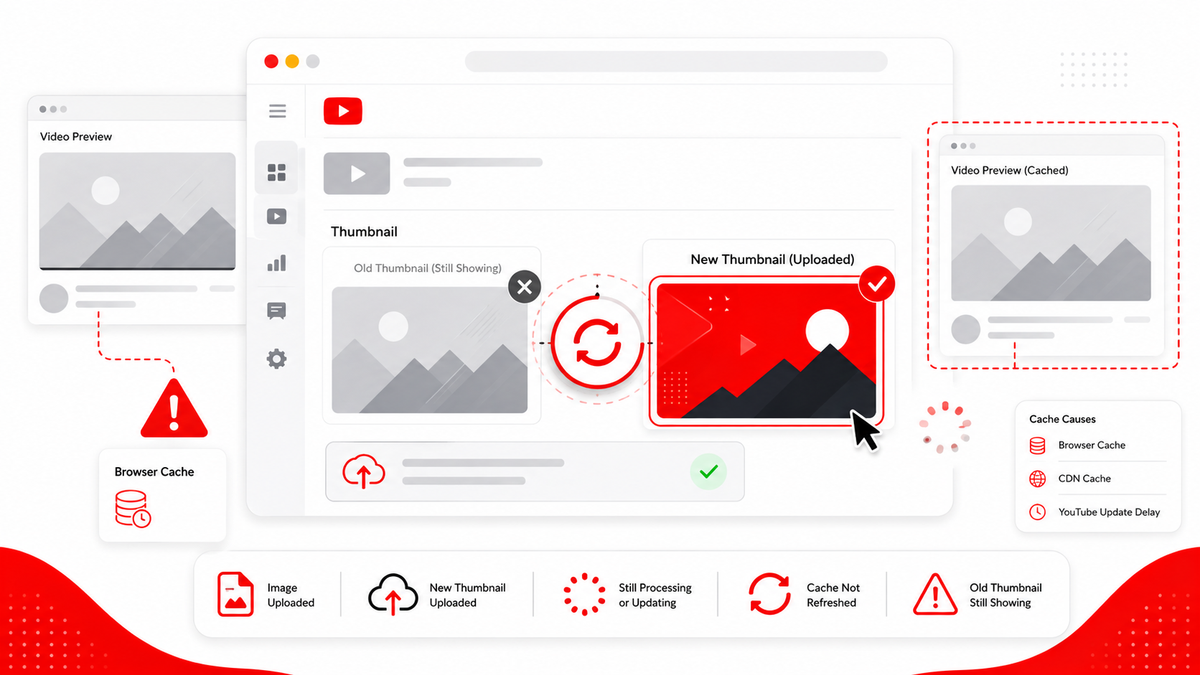
If you just uploaded a new thumbnail and it still isn't visible, or an old one keeps reappearing, the most common explanation isn't a broken upload — it's a delay. YouTube thumbnail not showing issues are usually caused by a combination of browser caching, app caching, and YouTube's own content delivery network taking time to propagate the new image across its servers. In most cases, the fix is patience combined with a few targeted cache-clearing steps. That said, not every case is caching. Sometimes the upload genuinely failed, the image didn't meet YouTube's requirements, or the change was never saved in the first place. This guide walks through both possibilities so you can quickly figure out which one you're dealing with, then walks through a practical, step-by-step troubleshooting checklist.
Caching vs. Upload Failure: Know the Difference First
Before trying any fixes, it helps to separate two very different problems that look identical from the outside. Caching delay means YouTube accepted your new thumbnail and it is saved correctly, but the old version is still being displayed somewhere because a browser, app, or server has stored ("cached") an older copy of the image and hasn't refreshed it yet. Upload failure means the new thumbnail was never actually applied. This can happen because of a connection issue during upload, an unsupported file type, a file that's too large, a permissions or account restriction, or simply clicking away before the change finished saving. The quickest way to tell them apart is to check YouTube Studio directly, which is covered in detail below. If Studio shows the new thumbnail, you're dealing with caching. If Studio still shows the old one, the upload itself needs attention.
How YouTube Processes a New Thumbnail
When you upload a custom thumbnail, YouTube doesn't simply swap one file for another in real time everywhere at once. The image is uploaded, validated against YouTube's technical requirements, processed, and then distributed across YouTube's content delivery network (CDN) so it can load quickly for viewers around the world. This distribution process is called propagation, and it doesn't happen instantly on every server at the same moment. Depending on the video's age, its traffic level, and general platform load, propagation can take anywhere from a few minutes to a few hours. In rare cases it can take longer. During this window, it's completely normal for the new thumbnail to appear in some places before others. This is also why refreshing a page once or twice sometimes "fixes" the issue instantly — the request happens to hit a server that has already received the updated image — while other times nothing changes even after several attempts, because the browser or app is repeatedly serving a locally stored copy instead of asking YouTube for a fresh one.
Why Different Parts of YouTube Show Different Thumbnails
A particularly confusing part of this issue is that a thumbnail not updating on one page while looking correct elsewhere. This can occur because each surface pulls or caches the image somewhat independently:
- Channel page – May cache thumbnails for a period before refreshing the video grid.
- Search results – Search often uses previously indexed thumbnail data, which can lag behind the latest upload.
- Watch page – Usually updates fastest since it's tied closely to the individual video.
- Embeds on other websites – Frequently cached by the embedding site or by browsers visiting that site, so they can lag well behind YouTube itself.
- Playlists and suggested video panels – May use a cached thumbnail snapshot generated at an earlier point.
- Mobile app – Has its own local image cache, separate from any browser cache.
None of this means something is broken. It reflects how a large-scale platform balances performance (fast-loading thumbnails) against freshness (always showing the newest version).
How to Confirm the New Thumbnail Was Actually Saved
Before assuming it's just a caching delay, confirm that YouTube actually has the new image on file.
- Open YouTube Studio in a browser.
- Go to Content, then select the specific video.
- Look at the thumbnail shown in the video details panel.
- If the new thumbnail appears here, YouTube has accepted and saved it — any mismatch elsewhere is a display/caching issue, not a failed upload.
- If the old thumbnail still appears in Studio itself, the change likely didn't save, and you should re-upload it.
This single check is the most reliable way to separate a real problem from a temporary display delay, because YouTube Studio reads directly from your account data rather than a cached public copy.
Step-by-Step Troubleshooting Checklist
Work through these steps roughly in order, starting with the simplest.
- Confirm in YouTube Studio that the new thumbnail is saved (see above).
- Wait 15–60 minutes. Many cases resolve on their own as propagation finishes.
- Hard refresh the page (Ctrl+F5 or Cmd+Shift+R) instead of a normal refresh.
- Open the video in an incognito/private browser window, which bypasses most local cache.
- Try a different browser entirely to rule out one browser's cache.
- Try a different device (phone, tablet, another computer) on a different network if possible.
- Clear your browser's cached images and files for a broader reset.
- Force-close and reopen the YouTube mobile app, or clear its cache in device settings.
- Check the image file itself against YouTube's format and size expectations.
- Wait longer (up to 24 hours) for stubborn cases before assuming something is wrong.
- Re-upload the thumbnail if Studio still shows the old version after these steps.
Desktop Troubleshooting
On desktop, most thumbnail display issues trace back to the browser rather than YouTube itself. Start with a hard refresh, since a standard refresh often reloads cached assets rather than fetching new ones from the server. If that doesn't help, open the video in a private/incognito window, which starts with no stored cache at all. If the new thumbnail appears correctly there, your regular browser simply needs its cache cleared through its settings menu. It's also worth testing a second browser altogether. If Chrome still shows the old thumbnail but Firefox or Edge shows the new one, that confirms the issue is local caching rather than anything on YouTube's end.
Mobile App Troubleshooting
The YouTube mobile app maintains its own image cache that is completely separate from any browser. Refreshing a browser tab has no effect on what the app displays. Instead:
- Pull down to refresh the relevant page inside the app, if supported.
- Fully close the app (not just minimize it) and reopen it.
- Clear the app's cache through your device's app settings (on Android, this is usually under Settings > Apps > YouTube > Storage; iOS typically requires offloading and reinstalling the app since it doesn't expose a direct cache-clear option).
- Confirm you're logged into the correct account, especially if you manage multiple channels.
Mobile app caches tend to be more persistent than browser caches, so it's common for the fix to take slightly longer on mobile than on desktop.
Image Format and File Requirements to Double-Check
If YouTube Studio itself still shows the old thumbnail after a fresh upload attempt, check the image file for basic compliance issues that commonly cause silent failures:
- File format should be JPG, PNG, GIF, or BMP.
- File size should stay under YouTube's stated upload limit.
- Aspect ratio close to 16:9 is recommended for consistent display.
- Minimum recommended width around 1280 pixels for clear rendering at various sizes.
If your file doesn't meet these basics, re-save or resize it, then re-upload rather than repeating the same attempt.
When It's a Real Problem (Not Just Caching)
Most thumbnail display issues resolve within a day through normal propagation and cache clearing. It's worth investigating further, or contacting YouTube support, if:
- YouTube Studio consistently reverts to the old thumbnail after multiple re-upload attempts.
- You receive an explicit error message during upload.
- The custom thumbnail option is greyed out or unavailable, which can sometimes relate to account verification status or eligibility for custom thumbnails.
- The issue persists identically across multiple browsers, devices, and networks after 24+ hours.
These patterns suggest something beyond simple caching, such as an account-level restriction or a genuine upload error worth escalating through YouTube's official support channels.
A Closer Look at Common Scenarios
"I uploaded a new thumbnail and the video page shows it, but the channel page doesn't." This is a textbook propagation delay. The watch page pulls data closely tied to the individual video, while the channel page's grid view often relies on a slightly different caching layer that refreshes on its own schedule. Give it time, and check back after clearing your browser cache. "My thumbnail changed for me, but not for my friend." You and your friend are on different devices with entirely separate local caches, and possibly different regions being served by different edge servers on YouTube's CDN. It's common for one person to see the update well before another, even when both are looking at the exact same video minutes apart. "The thumbnail changed back to the old one after a few hours." This is unusual and worth double-checking in YouTube Studio. If Studio still shows your intended new thumbnail, the reversion you're seeing elsewhere is very likely a stale cached copy resurfacing rather than YouTube actually reverting your change. If Studio itself shows the old thumbnail again, re-upload the image.
Best Practices to Avoid This Next Time
- Always confirm the new thumbnail is visible in YouTube Studio immediately after uploading, before assuming it's live everywhere.
- Give propagation at least 30–60 minutes before troubleshooting further.
- Use a properly sized, correctly formatted image from the start to avoid silent validation issues.
- Keep a habit of hard-refreshing or checking in a private window whenever you're verifying a recent change.
- If you frequently update thumbnails, consider tools like the Thumbix Thumbnail Downloader to review current live thumbnails when comparing versions.
Conclusion
A YouTube thumbnail not showing or updating is rarely a sign of something seriously wrong. In the vast majority of cases, it comes down to normal propagation delays combined with browser or app caching that hasn't refreshed yet. Confirming the change in YouTube Studio is the fastest way to know whether you're dealing with a display delay or an actual failed upload, and working through the checklist above — from a simple hard refresh to a full cache clear — resolves nearly every case without needing to contact support.
Frequently Asked Questions
Why does my old YouTube thumbnail still show up after I changed it?
This is almost always a caching delay, either in your browser, the YouTube app, or YouTube's content delivery network as the new image propagates. Confirm the change saved in YouTube Studio, then allow time and clear local caches.
How long does it take for a new YouTube thumbnail to update everywhere?
It varies by surface. Many changes appear within minutes on the watch page, while search results, embeds, and suggested panels can take longer, occasionally up to a day.
Why does my thumbnail look correct on my phone but not my computer?
Each device and app keeps its own separate cache, so one often refreshes before the other. Clearing cache or checking in a private browser window usually resolves the mismatch.
How do I know if my thumbnail upload actually failed?
Check YouTube Studio directly under Content > your video. If the old thumbnail still appears there rather than just on the public page, the upload likely didn't save and should be redone.
Does clearing my browser cache fix YouTube's own server-side caching?
No. Clearing your browser cache only affects locally stored data. It won't speed up YouTube's internal propagation, though it removes one common source of the mismatch.
Why is my custom thumbnail option missing or greyed out?
This can relate to account verification status or eligibility requirements for custom thumbnails. Check your account status or YouTube's official help documentation if the option is unavailable.
Can a bad image file cause a thumbnail to silently fail?
Yes. Files that don't meet basic format, size, or dimension expectations can fail to apply even without an obvious error message, which is why checking the file itself matters.