Table of Contents
- Quick Answer: 3 Ways to Save a YouTube Thumbnail on Android
- Method 1: Using Chrome on Android With an Online Downloader
- Method 2: Using the Android Files App to Manage Saved Thumbnails
- Method 3: Using an Online Thumbnail Downloader Directly (No App Needed)
- Saving YouTube Shorts Thumbnails on Android
- Why Android Doesn't Have a Built-In Thumbnail Save Option
- Checking Image Quality Before You Save
- Common Problems and Fixes
- "Nothing happens when I paste the link"
- "The downloaded thumbnail is blurry or low quality"
- "I can't find the file after downloading"
- "The link isn't supported"
Three real ways to save a YouTube thumbnail on Android, from a browser-based downloader to the Files app, with fixes for the most common problems.
Trying to save a YouTube thumbnail on Android usually starts the same way: you long-press the video preview, nothing useful happens, and you end up with a screenshot that's the wrong shape and covered in the video's play button and timestamp. Android doesn't offer a built-in "save thumbnail" option inside the YouTube app, so getting the actual full-resolution image takes a couple of extra, very quick steps. This guide walks through three real methods that work on any Android phone, plus where to find the file afterward and how to fix the handful of problems that trip people up.
Quick Answer: 3 Ways to Save a YouTube Thumbnail on Android
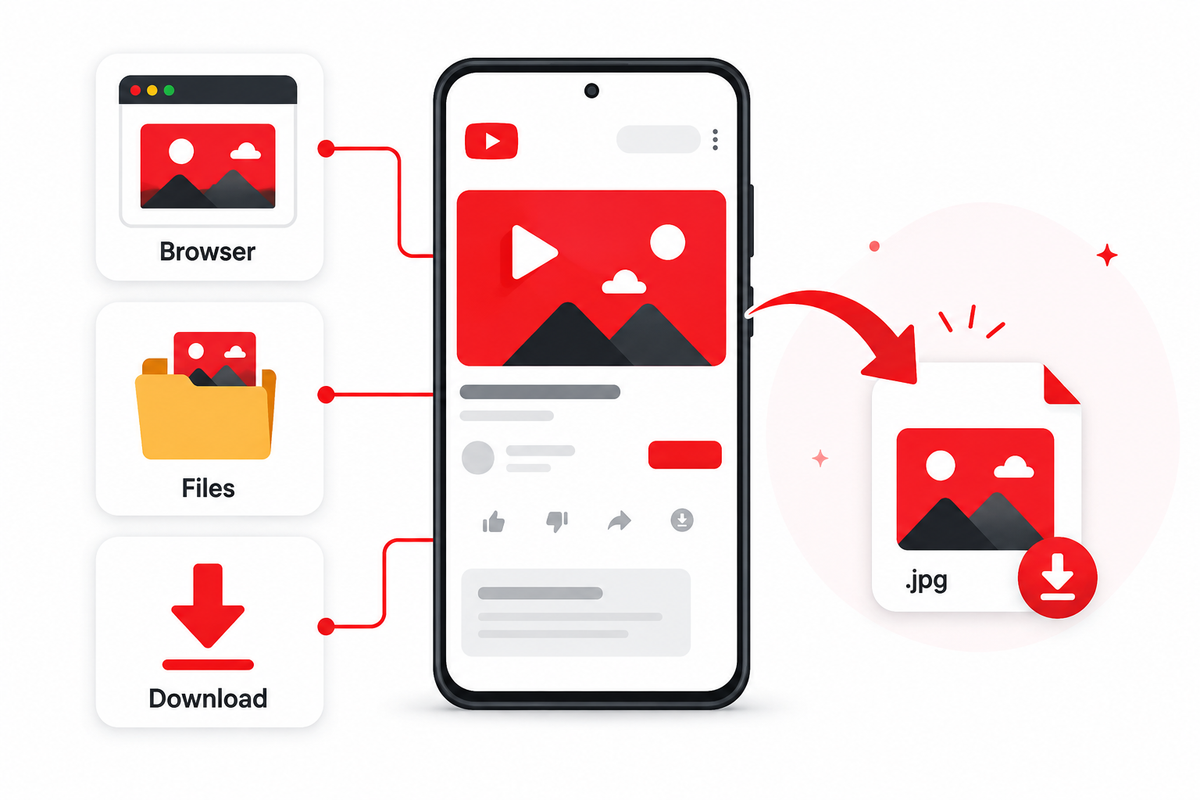
- Method 1: Copy the video link in Chrome, paste it into an online thumbnail downloader, and save the image it generates.
- Method 2: After downloading, use the Android Files app to locate, rename, move, or share the saved image.
- Method 3: Use an online downloader directly, without installing any app, choosing your preferred resolution before saving.
Method 1: Using Chrome on Android With an Online Downloader
- Open the YouTube app or Chrome and find the video whose thumbnail you want.
- Tap Share, then Copy link to copy the video's URL to your clipboard.
- Open Chrome and go to Thumbix's Thumbnail Downloader.
- Paste the copied link into the input box and tap the button to fetch the thumbnail.
- Choose your preferred resolution from the options shown, then tap the download button for that image.
- Long-press the preview image if prompted, or use the on-screen download button, to save it to your device.
- Check the notification shade for a "Download complete" alert, or open the Files app to find it in the Downloads folder.
Method 2: Using the Android Files App to Manage Saved Thumbnails
Once a thumbnail has been downloaded through Method 1, the Android Files app (sometimes labeled Files by Google) is where you'll actually manage it.
- Open the Files app and tap Downloads in the categories list.
- Locate the thumbnail image, which is usually named after the video title or a generic "thumbnail" filename.
- Long-press the file to bring up options to rename, move, copy, or share it.
- To make the image show up in Gallery or Google Photos, move or copy it into the device's Pictures or Camera folder rather than leaving it in Downloads.
- If this is the first time you've used the Files app to move an image, Android may prompt for storage access permission — allow it so the move/copy actions can complete.
Method 3: Using an Online Thumbnail Downloader Directly (No App Needed)
This is essentially Method 1 without treating it as a separate step, because the entire point of an online downloader is that it works without installing anything at all. Paste the video URL, and most tools — including Thumbix — return every available resolution: Max HD (1280×720), SD (640×480), HQ (480×360), and MQ (320×180). Max HD is available for most modern videos, including Shorts, and it's worth checking the preview before downloading, since older or lower-quality source videos sometimes only offer a smaller size at the top tier.
Saving YouTube Shorts Thumbnails on Android
Shorts links look a little different from regular video links (they contain /shorts/ followed by the video ID), but most downloader tools accept them directly, no extra steps required. Thumbix's Shorts Thumbnail Downloader is built specifically around Shorts links and also supports pulling several thumbnails at once if you're saving more than one.
Why Android Doesn't Have a Built-In Thumbnail Save Option
It's worth understanding why this takes a couple of extra steps in the first place. The YouTube app deliberately doesn't expose a direct "save thumbnail" button, since thumbnails are treated as part of a creator's uploaded content rather than a general-purpose image you're meant to grab from inside the app. Long-pressing a video preview on Android typically only offers options like adding to a playlist or sharing the video link, not saving the underlying image, which is exactly why a browser-based tool or the Files app workaround exists in the first place.
Checking Image Quality Before You Save
Not every video has a full high-definition thumbnail available. Older uploads, low-resolution source videos, or livestream recordings sometimes only offer a thumbnail at HQ (480×360) or lower, even if the downloader tool lists a Max HD option in its interface. Before saving, glance at the resolution shown next to each option and, if quality matters for what you're doing with the image, compare the file dimensions rather than assuming the top listed size is always genuinely full HD for that particular video.
Common Problems and Fixes
"Nothing happens when I paste the link"
Double-check that you copied the full URL, including the https:// prefix, and that you're pasting it into the tool's input box rather than a browser search bar by mistake.
"The downloaded thumbnail is blurry or low quality"
Make sure you selected the Max HD or highest available resolution before downloading — many tools default to a smaller size unless you pick a different one from the list.
"I can't find the file after downloading"
Check the Downloads folder in the Files app first. If it's not there, check your browser's own downloads list (in Chrome, tap the three-dot menu and select Downloads) to confirm the save actually completed.
"The link isn't supported"
This usually means the URL was shortened, malformed, or copied from an embed rather than the actual video page. Go back to the YouTube app, open the video directly, and use Share > Copy link again.
Frequently Asked Questions
Where do Chrome downloads go on Android?
By default, files downloaded through Chrome are saved to the Downloads folder, accessible through the Files app or through Chrome's own Downloads menu.
Can I save a YouTube thumbnail directly to my Gallery?
Not directly from a browser download. Save it to Downloads first, then move or copy the file into your Pictures folder using the Files app so it appears alongside your other photos.
Do I need to install an app to download a YouTube thumbnail?
No. A browser-based tool works entirely through Chrome, without installing anything on your device.
Does this work for YouTube Shorts as well as regular videos?
Yes. Paste a Shorts link (containing /shorts/) into a downloader the same way you would a regular video link.
Why is the thumbnail I downloaded smaller than expected?
Some tools default to a lower resolution option. Look for a Max HD or 1280×720 selection before downloading to get the highest quality available.
Is it legal to download a YouTube thumbnail?
Downloading a thumbnail for personal use, reference, review, or educational purposes is generally fine, but the image itself may still be copyrighted by the channel, so republishing it commercially without permission isn't advisable.
Can I download thumbnails for more than one video at once?
Some tools, including Thumbix's Shorts downloader, support pulling multiple thumbnails in one session rather than one link at a time.
Does this process work the same way on Android tablets?
Yes. The steps are identical on tablets running Android with Chrome and the Files app, since neither depends on phone-specific hardware.