Table of Contents
- Official YouTube Banner Dimensions
- Why the Safe Zone Exists
- How Your Banner Crops on Different Devices
- File Format and Size Requirements
- Step-by-Step: Designing a Safe-Zone-Compliant Banner
- How to Upload Your Channel Art
- Common Mistakes to Avoid
- Best Practices
- Pro Tips
- Frequently Asked Questions
- Final Thoughts
The exact YouTube banner size, safe zone dimensions, and file specs for channel art that looks perfect on TV, desktop, and mobile.
Your YouTube banner is one of the first things a visitor sees when they land on your channel, and it's also one of the most commonly botched pieces of channel design. The core problem isn't creativity, it's math: YouTube displays your banner differently on TV, desktop, tablet, and mobile, which means huge portions of your uploaded image get cropped depending on the device your viewer is using. Design your banner around the full canvas without accounting for this, and you'll end up with your logo, text, or key visual elements cut off for a large chunk of your audience. This guide breaks down the exact YouTube channel art size, the safe zone that guarantees visibility across every device, and a practical template-based approach to designing banners that hold up everywhere.
Why This Topic Matters
Channel art sets the tone for your entire channel before a viewer even watches a video. A banner that looks polished and intentional builds instant credibility, while one with cut-off text or an awkward crop can make even a well-produced channel look unfinished. Since YouTube crops differently across TV, desktop, and mobile, understanding the safe zone isn't optional if you want consistent branding across your whole audience.
Who This Guide Is For
- New creators designing channel art for the first time
- Anyone rebranding an established channel
- Designers and agencies producing channel art for multiple clients
- Creators whose current banner looks fine on desktop but cropped oddly on mobile or TV
Quick Answer
The official YouTube banner size is 2560 × 1440 pixels. However, not all of that image is visible on every device. The text and logo safe zone—the area guaranteed to display on all devices, including TV—is only 1235 × 338 pixels, centered in the middle of the canvas. Keep your most important content inside that safe zone, use the full 2560×1440 canvas for background art and color, and export as a JPG, PNG, BMP, or GIF (non-animated) under 6MB.
Official YouTube Banner Dimensions
- Full upload canvas: 2560 × 1440 px
- Minimum upload size: 2048 × 1152 px
- Safe zone (visible on all devices): 1235 × 338 px, centered
- Aspect ratio of full canvas: 16:9
- File formats: JPG, PNG, BMP, GIF (static only)
- Max file size: 6MB
- Color mode: RGB (not CMYK)
The gap between the full 2560×1440 canvas and the much smaller 1235×338 safe zone is the single most misunderstood part of YouTube banner design. That full canvas is only completely visible on large TV screens. On desktop and especially mobile, YouTube crops in significantly from the top and bottom, and sometimes the sides, showing only the center band of your image.
Why the Safe Zone Exists
YouTube is watched on an enormous range of screen sizes and aspect ratios, from ultra-wide TVs to small phone screens held vertically. Rather than showing a different banner design per device (which would require creators to upload multiple versions), YouTube uses a single "safe zone" approach: one universal image is uploaded, but only the center portion is guaranteed to be visible everywhere. Think of it like a billboard viewed from directly in front versus from a sharp angle. The full billboard is always physically there, but depending on your viewing position (device, in YouTube's case), you might only see the middle section clearly.
How Your Banner Crops on Different Devices
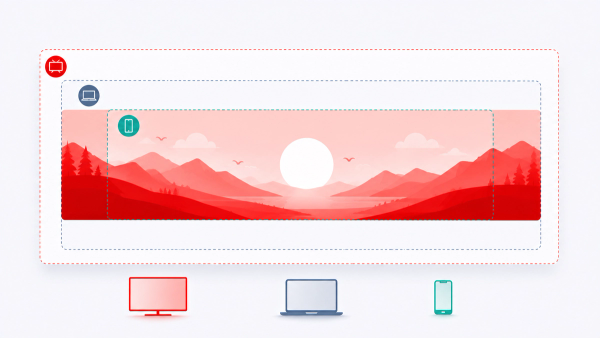
- TV: Shows close to the full 2560×1440 canvas, so background art extending to the edges is visible.
- Desktop: Crops in from the top and bottom, showing roughly the center 2560×423 pixel strip.
- Tablet: Crops further, showing around 1855×423 pixels centered.
- Mobile: Crops the most aggressively, typically showing around 1546×423 pixels centered.
Notice that the safe zone (1235×338 px) fits comfortably inside all of these crops. That's precisely why it's called "safe"—no matter which device your viewer uses, anything inside that central zone will always be visible, while anything outside it is a gamble depending on the device.
File Format and Size Requirements
YouTube accepts JPG, PNG, BMP, and static GIF files (animated GIFs are flattened to a single frame) for channel art, with a maximum file size of 6MB. As with thumbnails and avatars, always export in RGB color mode rather than CMYK to avoid unexpected color shifts or upload issues.
Step-by-Step: Designing a Safe-Zone-Compliant Banner
- Create a canvas at 2560 × 1440 pixels in your design tool of choice (Photoshop, Figma, Canva, or similar).
- Draw a centered rectangle at 1235 × 338 pixels—this is your safe zone guide. Most design tools let you draw this manually using the ruler and center-alignment tools.
- Place your logo, channel name text, upload schedule, or any critical branding elements entirely inside this safe zone.
- Use the remaining canvas space for background elements, like gradients, patterns, or wide environmental imagery that still looks good even if partially cropped.
- Avoid placing any secondary text or icons close to the top or bottom edges of the full canvas, since these are the first areas cropped out on desktop and mobile.
- Export as a flattened RGB JPG or PNG, keeping the file size under 6MB.
- Preview using YouTube Studio's built-in preview tool, which shows how your banner will appear on TV, desktop, and mobile before you publish.
Tip: If you already have channel art designed at the wrong size, our Thumbnail Resizer can help you quickly reformat images to the correct canvas dimensions before uploading.
How to Upload Your Channel Art
- Sign in to YouTube Studio.
- Click Customization in the left sidebar, then the Branding tab.
- Under "Banner image," click the upload icon.
- Select your properly sized banner file.
- Use YouTube's preview tool to check how it looks across TV, desktop, and mobile.
- Click Select, then Publish to make it live.
Common Mistakes to Avoid
- Designing only for desktop. A banner that looks perfect on a laptop screen can easily crop out logos or text on mobile if the safe zone wasn't respected.
- Placing text anywhere outside the safe zone. Even text that looks fine on your own screen during design can be cut off for a large share of your audience.
- Uploading a low-resolution image and letting YouTube stretch it. This causes visible blurring, especially on large TV displays.
- Forgetting to preview on YouTube Studio's device preview before publishing.
- Using a CMYK color export, which can shift your carefully chosen brand colors.
Best Practices
- Always design at the full 2560×1440 resolution, never smaller.
- Keep all critical content—logo, channel name, tagline, upload schedule—inside the 1235×338 safe zone.
- Use background elements (not text or logos) to fill the space outside the safe zone.
- Preview your design across all three device previews in YouTube Studio before publishing.
- Keep a consistent color palette between your banner, avatar, and thumbnails for cohesive channel branding.
Pro Tips
Pro Tip: If your channel posts on a regular schedule, consider including your upload days directly in the safe zone (e.g., "New videos every Tuesday & Friday"). This is one of the highest-value, most functional pieces of information you can put in a banner, and it's a common practice among established creators. Pro Tip: Design your safe zone content first, in isolation, before building out the rest of the banner. This forces you to prioritize what's actually essential, rather than trying to cram too much into a space that will mostly be cropped away. Warning: Avoid placing your social media handles or contact information outside the safe zone if it's important for viewers to see. Instead, use YouTube's dedicated channel links feature for that information, since banner text outside the safe zone isn't guaranteed to be visible.
Final Thoughts
YouTube channel art design comes down to one core principle: design for the smallest visible area first, then build outward. The 1235×338 pixel safe zone is the only guarantee you have across every device your audience might use, so treat it as the true canvas for anything essential, and use the wider 2560×1440 space for supporting background art. Get this right once, and your banner will look intentional and professional everywhere it's shown.
Call to Action
Need to quickly resize an existing banner to the correct dimensions, or check what a competitor's channel art looks like at full resolution? Try our free Thumbnail Resizer and YouTube Channel Art Downloader tools, both available with no login required.
Frequently Asked Questions
What is the exact YouTube banner size?
The full upload canvas is 2560 × 1440 pixels, but only the centered 1235 × 338 pixel safe zone is guaranteed to be visible across all devices.
What happens if I upload an image smaller than the recommended size?
YouTube's minimum accepted size is 2048 × 1152 pixels. Anything below that won't be accepted, and images close to the minimum may appear less sharp on large screens like TVs.
Why does my banner look different on my phone than on my computer?
YouTube crops your banner differently depending on the device's screen size and aspect ratio. Mobile crops the most aggressively, showing only the center portion of your image, which is exactly why the safe zone exists.
Can I use an animated GIF as my channel banner?
No. YouTube will flatten any animated GIF into a single static frame for channel art, so it will not animate.
What file size limit applies to channel banners?
The maximum file size is 6MB, with accepted formats including JPG, PNG, BMP, and static GIF.
How do I preview how my banner will look before publishing?
YouTube Studio includes a built-in preview tool during the upload process that shows how your banner will appear on TV, desktop, and mobile screens before you confirm the upload.
Should I put my logo in the center or off to the side?
As long as it's within the 1235 × 338 pixel safe zone, either placement can work. Centered logos tend to feel more balanced, while off-center placement can leave room for a tagline or schedule text alongside it.
Can I use the same banner across multiple channels?
Technically yes, but it's not recommended for branding purposes unless the channels are part of the same network and intentionally share visual identity.
Does my banner affect YouTube SEO?
Not as a direct ranking factor, but a professional, well-branded banner improves trust and viewer retention on your channel page, which can indirectly support subscriber conversion and watch time.
How can I see what a channel banner looks like at full resolution?
You can use our YouTube Channel Art Downloader to pull any public channel's current banner at full resolution, which is helpful for studying design choices or recovering your own lost files.